- Published on
Connecting Pancake Webhook & Send-Message API: A Complete Guide
- Published on

- Name
- Định Phan - netFull
Connecting Pancake Webhook & Send-Message API: A Complete Guide
TL;DR: Pancake is a popular multichannel chat management platform in Vietnam. To integrate with external systems, Pancake offers two mechanisms: Webhook (Pancake pushes events to your server) and API (your server calls into Pancake). All page-level APIs live at
https://pages.fm/api/public_api/v1/...and authenticate via a Page Access Token copied from Settings → Tools in the page dashboard.
Pancake is more than a chat and sales management tool — it's an open platform that lets you connect internal systems via API and Webhook. If you're new to Pancake, start with the overview post.
The two mechanisms differ but complement each other:
- Webhook: Pancake actively pushes data to your system whenever an event happens — new customer message, new order, order status change...
- API: Your system actively calls into Pancake to perform actions — send reply messages, create orders, read conversation info...
This guide walks you end-to-end: configuring a webhook to receive messages and calling the API to send replies.
Full API reference: developer.pancake.biz
1. Prerequisite: Get a Page Access Token
Before calling the send-message API, you need a Page Access Token — the "key" that authenticates external systems with Pancake on behalf of a specific page.
Pancake has 2 token types — which one do you need?
| Type | Field name | Used for | Expiry |
|---|---|---|---|
| User Access Token | access_token | Account-level APIs (list pages, generate page_access_token) | ~90 days or on logout |
| Page Access Token | page_access_token | Page-level APIs (messages, conversations, customers, stats...) | Does not expire unless manually deleted/regenerated |
TIP
Most integration scenarios (sending replies, reading messages, managing conversations, tags, customers...) only need the Page Access Token. The User Access Token is only required when you want to programmatically list pages or auto-generate tokens for multiple pages.
Option A — Get Page Access Token from the UI (simplest, recommended for a single page)
- Log in to Pancake, open the page you want to connect
- Go to Settings → Tools (Cài đặt → Công cụ)
- Copy the Page Access Token shown in the panel
Option B — Generate Page Access Token via API (when managing many pages)
First you need a User Access Token:
- Go to Account → Personal Settings (Tài khoản → Cài đặt cá nhân)
- Copy the API Access Token — this is the User Access Token
Then, as an admin of the target page, call:
curl -X POST \
  "https://pages.fm/api/v1/pages/{page_id}/generate_page_access_token?access_token=YOUR_USER_ACCESS_TOKEN"
The response returns a new page_access_token and invalidates the previous one for that page. Useful for auto-refresh or managing many pages programmatically.
Reference: Pancake API — Generate page_access_token.
Security notes
A Page Access Token grants read/write access to all page data (conversations, customers, messages). Therefore:
- Treat it like a password — anyone with the token can act on the page
- Don't commit to public git repos, don't paste into chats/emails
- Each page has only one valid token at a time — scoped to that page, can't be reused across pages. Regenerating invalidates the old token immediately, so update any module relying on it
- Store in an env variable on the server or a secret manager (Vault, AWS Secrets Manager...)
- Regenerate when leakage is suspected — recreate from UI or API; the old token auto-invalidates
2. Configure Webhook — Receive real-time events from Pancake
How does a webhook work?
Instead of your system constantly asking Pancake "Any new messages? Any new orders?" (polling), a webhook lets Pancake actively call your URL the moment an event occurs.
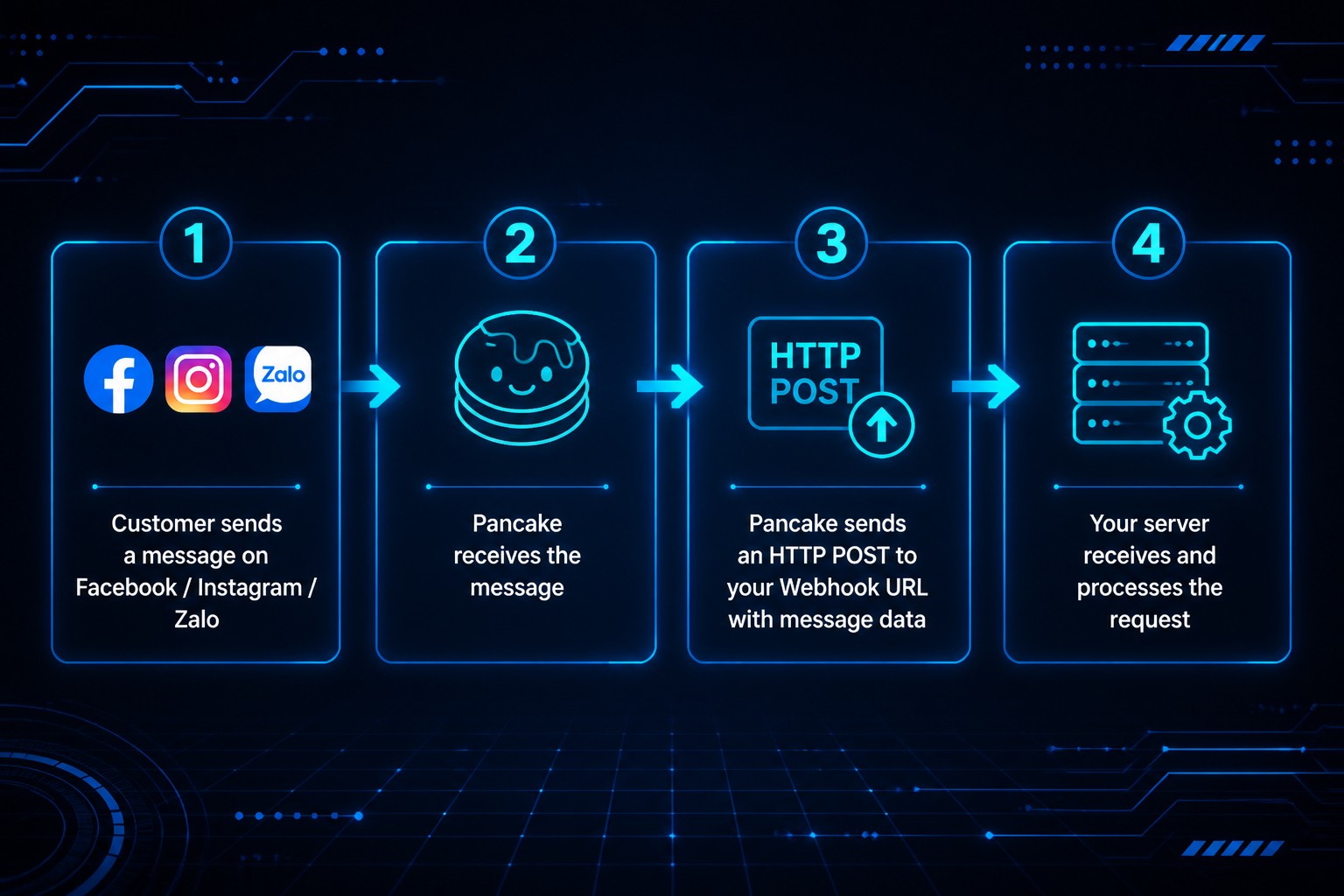
Advantages over polling:
- Real-time: receive data immediately, no delay
- Resource-efficient: no need to poll the API continuously
- Simple: only need a single HTTP endpoint
Register a Webhook URL
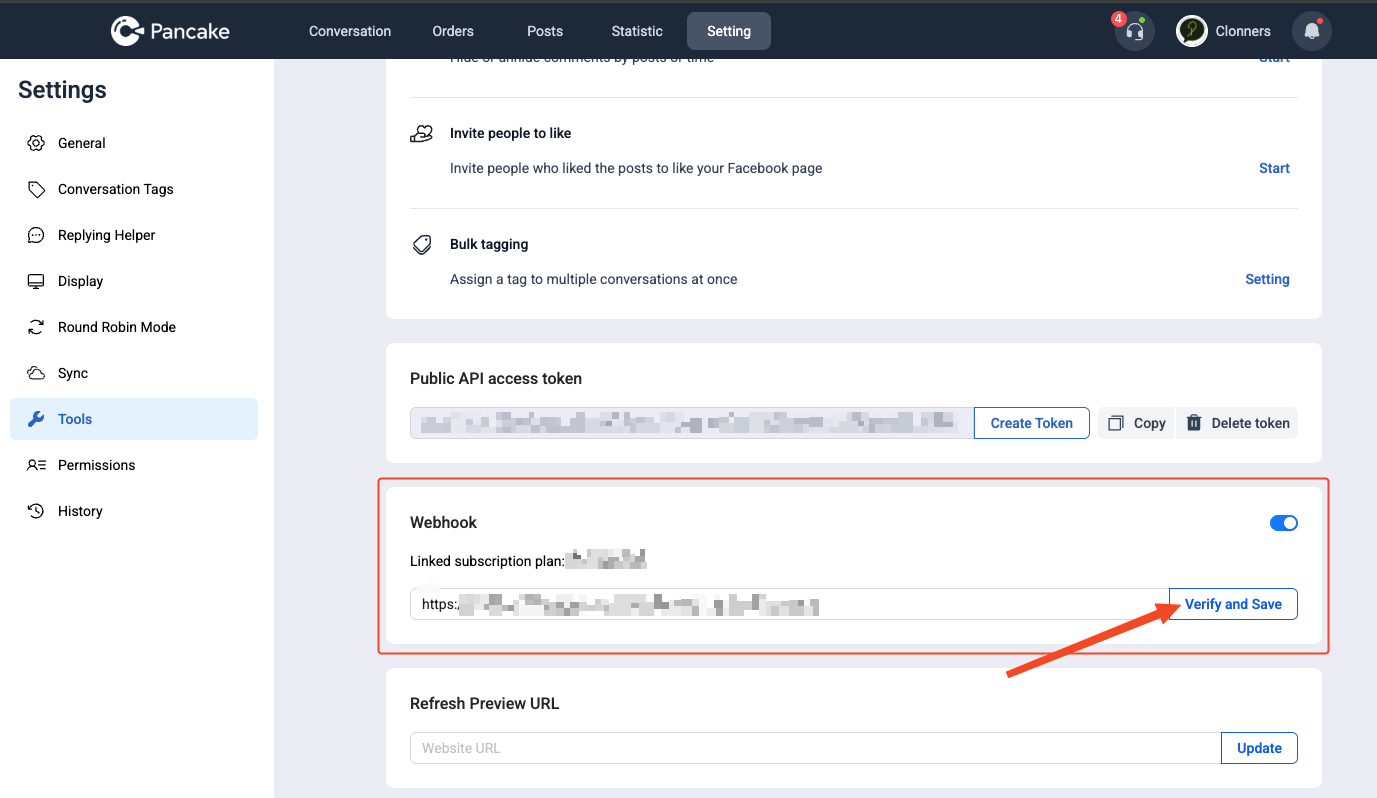
- In the Webhook/API section, find the webhook configuration. You need to ask Pancake Support to enable this feature for your shop — it's not on by default. The setting is also only visible to users with the admin role.
- Enter your Webhook URL — the endpoint on your server where Pancake will POST data, e.g.
https://your-server.com/webhook/pancake - Save the configuration
Technical requirements for the webhook endpoint
Your server receiving the webhook must:
| Requirement | Detail |
|---|---|
| HTTPS | The endpoint must have a valid SSL certificate. Pancake won't send to http:// URLs |
| Respond fast | Return HTTP 200 within a few seconds. If processing is heavy, ack 200 immediately and run logic in the background |
| POST method | Pancake sends data as HTTP POST with a JSON body |
| Always available | Server must be online 24/7 to avoid missing events |
If the endpoint returns an error (5xx) or times out, Pancake retries. However, prolonged failures can cause the webhook to be temporarily suspended.
Quick test with webhook.site
No server yet? Use webhook.site to test first:
- Visit webhook.site — you'll get a temporary URL (e.g.
https://webhook.site/abc-123-xyz) - Paste this URL into Pancake's webhook configuration
- Send a test message to a Facebook page connected to Pancake
- Return to webhook.site — you'll see the payload Pancake sent
This is the fastest way to inspect the actual webhook data shape before writing code.
Webhook payload structure
When a new message arrives, Pancake POSTs a JSON payload to your webhook URL. Example structure:
{
  "event_type": "new_message",
  "page_id": "123456789",
  "conversation_id": "conv_abc123",
  "customer": {
    "id": "cust_001",
    "name": "Nguyen Van A",
    "psid": "fb_user_567"
  },
  "message": {
    "id": "msg_xyz",
    "text": "Hi shop, is this item still in stock?",
    "created_time": "2026-05-20T10:30:00Z"
  }
}
NOTE
The structure above is illustrative. For the exact field schema, see developer.pancake.biz/webhook. Or simpler — use webhook.site to capture the real payload from your shop.
Key fields to note:
page_id: ID of the Facebook Page / channel receiving the message — needed when calling the reply API. If you need to look up apage_idfrom a Facebook page link, try the FB Info Lookup tool.conversation_id: Conversation ID — to send the reply to the correct conversationmessage.text: The customer's message — the main payload you'll processcustomer: Customer info — name, ID, platform ID
3. Call the API — Send a reply to the customer
Once you've received a message via webhook, the next step is sending a reply. Pancake provides an API to send messages directly into a conversation.
Send-message endpoint
POST https://pages.fm/api/public_api/v1/pages/{page_id}/conversations/{conversation_id}/messages
| Parameter | Location | Description |
|---|---|---|
page_id | URL path | The page ID (from webhook payload or GET /pages API) |
conversation_id | URL path | The conversation ID (from webhook payload) |
page_access_token | Query param | Page Access Token from step 1 |
Note: page-level APIs live under /api/public_api/v1/ (NOT /api/v1/) and use page_access_token, NOT access_token. Full reference: developer.pancake.biz.
cURL example
curl -X POST \
  "https://pages.fm/api/public_api/v1/pages/123456789/conversations/conv_abc123/messages?page_access_token=YOUR_PAGE_ACCESS_TOKEN" \
  -H "Content-Type: application/json" \
  -d '{
    "action": "reply_inbox",
    "message": "Hi! Thanks for reaching out. The product is still in stock."
  }'
Successful response
{
  "id": "1599241350234224_1599318880226471",
  "success": true
}
Error responses
| HTTP Status | Cause | Fix |
|---|---|---|
| 401 | Page Access Token is wrong or has been regenerated | Pancake → Settings → Tools → copy the new token |
| 404 | conversation_id doesn't exist | Verify the ID; the conversation may have been deleted |
| 429 | Too many requests (rate limit) | Reduce call frequency, add delay between requests |
| 500 | Server error | Retry after a few seconds; if it persists, contact Pancake support |
Extended parameters
Beyond simple text replies (reply_inbox), the API also supports:
- Reply to comment: Use
parent_id(the comment ID to reply to) withaction: "reply_comment"to reply to a comment instead of inbox - Other formats: See the full reference at developer.pancake.biz for parameters supporting images, buttons, and templates
4. Real-world example: complete flow from receiving to replying
A simple Node.js example — a server receives the webhook from Pancake and auto-sends a confirmation message:
const express = require("express");
const app = express();
app.use(express.json());

// Page Access Token — from Pancake → Settings → Tools
// (one token per page, never expires)
const PANCAKE_PAGE_ACCESS_TOKEN = process.env.PANCAKE_PAGE_ACCESS_TOKEN;

// Endpoint receiving the webhook from Pancake
app.post("/webhook/pancake", async (req, res) => {
  // Ack 200 immediately so Pancake knows we received it
  res.status(200).json({ received: true });

  const { page_id, conversation_id, message, customer } = req.body;

  // Skip messages sent by the page itself (avoid infinite loops)
  if (req.body.is_page_sender) return;

  console.log(`Message from ${customer?.name}: ${message?.text}`);

  // Send reply via Pancake API
  try {
    const response = await fetch(
      `https://pages.fm/api/public_api/v1/pages/${page_id}/conversations/${conversation_id}/messages?page_access_token=${PANCAKE_PAGE_ACCESS_TOKEN}`,
      {
        method: "POST",
        headers: { "Content-Type": "application/json" },
        body: JSON.stringify({
          action: "reply_inbox",
          message:
            "Hi! We've received your message — a team member will reply shortly.",
        }),
      }
    );

    const data = await response.json();
    console.log("Reply sent:", data);
  } catch (error) {
    console.error("Failed to send reply:", error.message);
  }
});

app.listen(3000, () => {
  console.log("Webhook server running on port 3000");
});
How the flow works
1. Customer sends "Hi shop, can you help me?" on Messenger
2. Pancake receives the message → POSTs webhook to https://your-server.com/webhook/pancake
3. Server receives payload → returns 200 immediately
4. Server parses page_id, conversation_id from payload
5. Server calls Pancake API to send the reply → "We've received your message..."
6. Customer sees the reply on Messenger
The whole flow takes just a few seconds. The customer gets a response immediately, even when no staff is online.
Equivalent in Python
from flask import Flask, request, jsonify
import requests
import os

app = Flask(__name__)
# Page Access Token — Pancake → Settings → Tools
PANCAKE_PAGE_ACCESS_TOKEN = os.environ.get("PANCAKE_PAGE_ACCESS_TOKEN")

@app.route("/webhook/pancake", methods=["POST"])
def handle_webhook():
    data = request.json

    page_id = data.get("page_id")
    conversation_id = data.get("conversation_id")
    customer = data.get("customer", {})
    message = data.get("message", {})

    print(f"Message from {customer.get('name')}: {message.get('text')}")

    # Send reply via Pancake API
    url = f"https://pages.fm/api/public_api/v1/pages/{page_id}/conversations/{conversation_id}/messages"
    resp = requests.post(url, params={"page_access_token": PANCAKE_PAGE_ACCESS_TOKEN}, json={
        "action": "reply_inbox",
        "message": "Hi! We've received your message — a team member will reply shortly."
    })

    print(f"Reply status: {resp.status_code}, response: {resp.json()}")
    return jsonify({"received": True}), 200

if __name__ == "__main__":
    app.run(port=3000)
5. Important deployment considerations
Avoid infinite loops
This is the most common bug when wiring up a webhook for the first time:
Bot sends reply → Pancake receives → Pancake triggers "new message" webhook
→ Server receives → Bot sends reply → Pancake triggers webhook → ... infinite loop
WARNING
The webhook payload includes a field distinguishing messages from the customer vs from the page. Check from.id:
If from.id == page_id, the message came from the page → ignore it. Otherwise it came from a customer → process. Always add this filter before any other logic.
Handle webhooks fast, run logic in the background
Pancake waits a bounded time for the webhook endpoint to respond. If your server takes too long, Pancake may treat it as an error and retry — causing duplicate processing.
Rule: receive request → ack 200 → process asynchronously.
app.post("/webhook/pancake", async (req, res) => {
  // Ack 200 immediately, don't wait for processing
  res.status(200).json({ received: true });

  // Process asynchronously
  processMessage(req.body).catch(console.error);
});
Facebook's 24-hour rule
For Facebook Messenger, Facebook only allows a page to send messages to a customer within 24 hours of the customer's last message. After 24 hours, you can't send proactive messages unless using approved Message Tags.
This isn't a Pancake limit — it's Facebook policy. Design auto-flows accordingly: reply quickly within the allowed window.
Log everything
When first deploying, log:
- Every webhook payload received
- Every API call sent and its response
- All errors
Logs make debugging fast when issues arise. Once stable, you can downgrade to error-only logging.
Multi-channel — one endpoint handles all
Pancake's webhook receives messages from every channel you've connected: Facebook Messenger, Instagram DM, Zalo OA, WhatsApp, Website Live Chat... All POST to the same webhook URL, with the same format.
You don't need a separate endpoint per channel. To distinguish channels, check the platform or page_id field in the payload.
Frequently Asked Questions (FAQ)
What is a Pancake Page Access Token, and how does it differ from a User Access Token?
The Page Access Token authenticates requests on behalf of a specific page — used by nearly all page-level endpoints (messages, conversations, customers, statistics). It does not expire unless deleted or regenerated. The User Access Token authenticates at the account level — only needed when you want to list pages or programmatically generate page_access_token for multiple pages; it expires after ~90 days or on logout.
How do I prevent infinite webhook loops when auto-replying?
In the webhook payload, check from.id. If from.id == page_id, the message was sent by the page itself → ignore it. Only process replies when the message comes from a customer. This filter is mandatory and must be added before any other logic.
Does Pancake rate-limit the send-message API?
Yes. When exceeded, the API returns HTTP 429. Add delays between requests, use a queue with exponential backoff, and batch messages when possible.
Which channels does Pancake webhook support?
The Pancake webhook receives events from all connected channels: Facebook Messenger, Instagram DM, Zalo OA, WhatsApp, Website Live Chat, TikTok... All push to the same URL with the same format. Identify the channel via the platform or page_id field in the payload.
Does the Page Access Token expire? What do I do if it's revoked?
It doesn't expire by time — it's only invalidated when you (a) regenerate a new token or (b) delete it manually. When you receive HTTP 401 from the API, go to Settings → Tools, copy the new token, and update your server env. Note: each page has only one valid token at a time.
Why don't I see the Webhook menu in Pancake?
The Webhook feature must be manually enabled by Pancake Support for your shop. Contact the Pancake support team to request it. Only users with the admin role can see the menu after it's enabled.
How do I test the webhook without a real server?
Use webhook.site — it gives you a temporary URL. Paste it into Pancake's webhook config, send a test message to your page, then return to webhook.site to see the real payload Pancake sent. This is the fastest way to understand the data structure before writing code.
What is the exact send-message API endpoint?
POST https://pages.fm/api/public_api/v1/pages/{page_id}/conversations/{conversation_id}/messages?page_access_token={token}
Note: path is /api/public_api/v1/, NOT /api/v1/. Query param is page_access_token, NOT access_token.
Related posts & tools
- 📖 Introducing Pancake — An All-in-One Multichannel Sales Platform — overview before integrating
- 🔧 FB Info Lookup tool — quickly extract
page_idand public metadata from a Facebook page/profile link - 🛒 Shopee Affiliate Link tool — generate Shopee affiliate links for e-commerce integrations
Wrap-up
With just two things — Webhook to receive events and API to send messages — you have the foundation for any automation scenario on Pancake:
- Auto-reply to messages outside business hours
- Send order confirmations to customers via chat
- Integrate an AI chatbot for product consultations
- Sync conversations with your internal CRM
This guide is the starting point. From here, you can expand based on your business needs.
Full API reference: developer.pancake.biz
If you need technical support during integration, contact the Pancake support team — we're here to help.
Last updated: 2026-05-25. Endpoints and token formats may change over time — always check developer.pancake.biz for the latest.