- Published on
Pancake CRM MCP — Ask AI for instant sales reports and staff performance
- Published on

- Name
- Định Phan - netFull
Pancake CRM MCP — Ask AI for instant sales reports and staff performance
TL;DR: Pancake CRM v2 launched an MCP server at
https://mcp-crm.pancake.biz/mcp. Connect once, and AI can read your Leads, Deals, Contacts, Tickets, and Orders directly from your workspace — ask in plain language, get a table of numbers in seconds. This post: quick setup → 15 practical prompts grouped by use case → 6 techniques to ask better questions and dig deeper when needed.
NOTE
CRM MCP only works with CRM v2 (crm.pancake.vn/v2). CRM v1 is not supported — if your workspace hasn't migrated to v2 yet, you'll need to do that first.
The problem: the data is there, but getting it is painful
Sales Manager: "Has anyone closed a deal this week?" → Open CRM, filter by staff, filter by status, export, stitch together. 15 minutes.
Director: "Which converts better this month — Facebook leads or Google leads?" → "Let me run a report… oh, the system doesn't have that column built in." 1 day.
The CRM isn't missing data. The problem is that every question requires manual clicking or an Excel export.
Pancake CRM MCP lets your AI — Claude, Cursor, or any app that supports MCP — read CRM data directly and answer questions in plain language.
Connect once
Step 1 — Create an API key in CRM
Go to Cấu hình → Công cụ → tab Webhook - API (Settings → Tools → Webhook - API tab), then click Thêm mới (Add new).
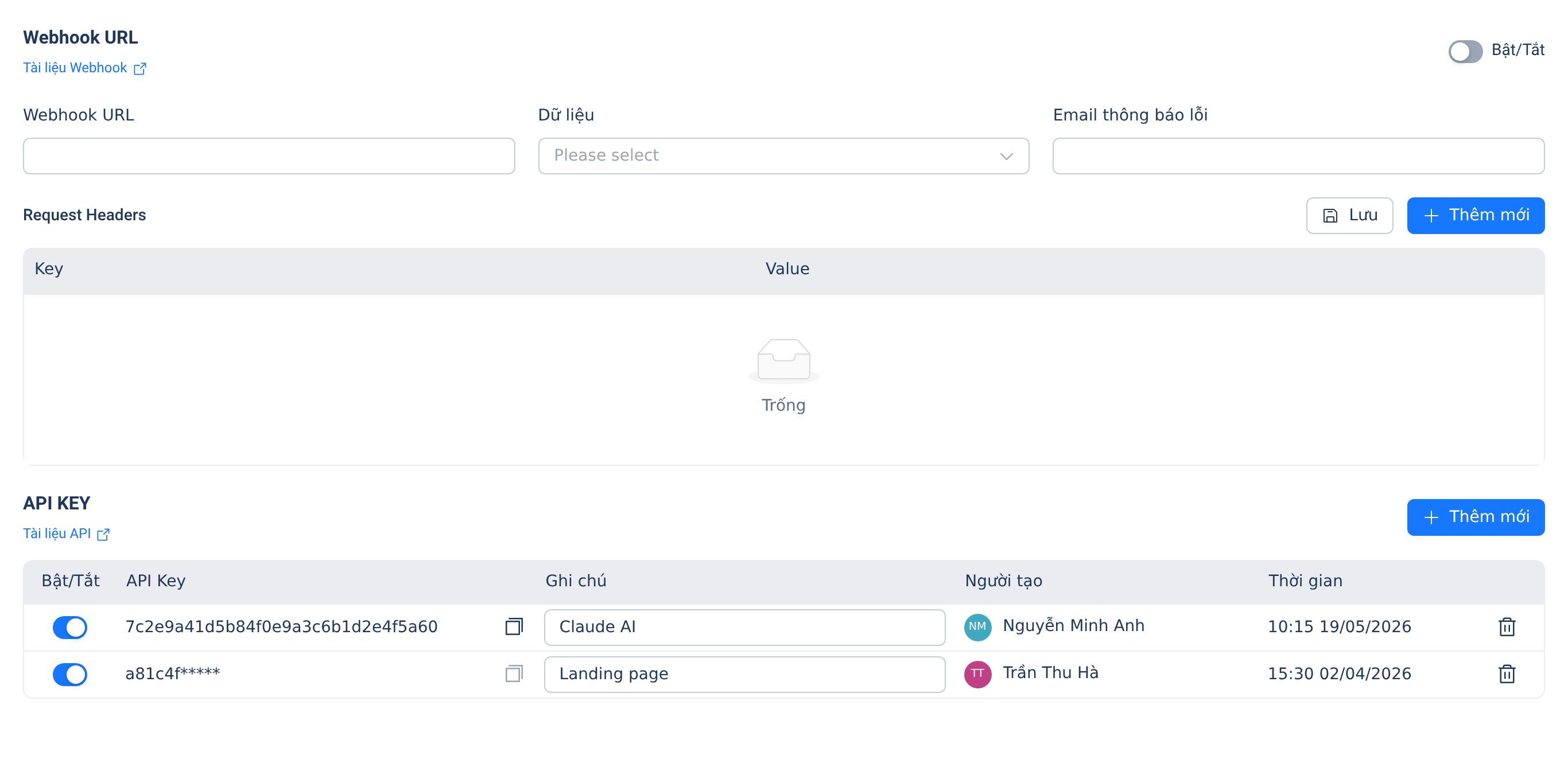
A new key row appears with the toggle already enabled. Add a note — e.g. Claude AI — so you can identify it later. Copy the key and store it somewhere safe.
WARNING
A CRM API key has CEO-level access — it can create, edit, and delete data across the workspace. Create a dedicated key for MCP, don't share it with other systems. If it's ever compromised: disable the toggle at Cấu hình → Công cụ → Webhook - API immediately.
Step 2 — Add the connector in Claude Desktop
- Open Settings → Connectors → Add custom connector
- Enter name:
Pancake CRM, URL:https://mcp-crm.pancake.biz/mcp - Click Add — your browser opens the Authorize Pancake CRM MCP page
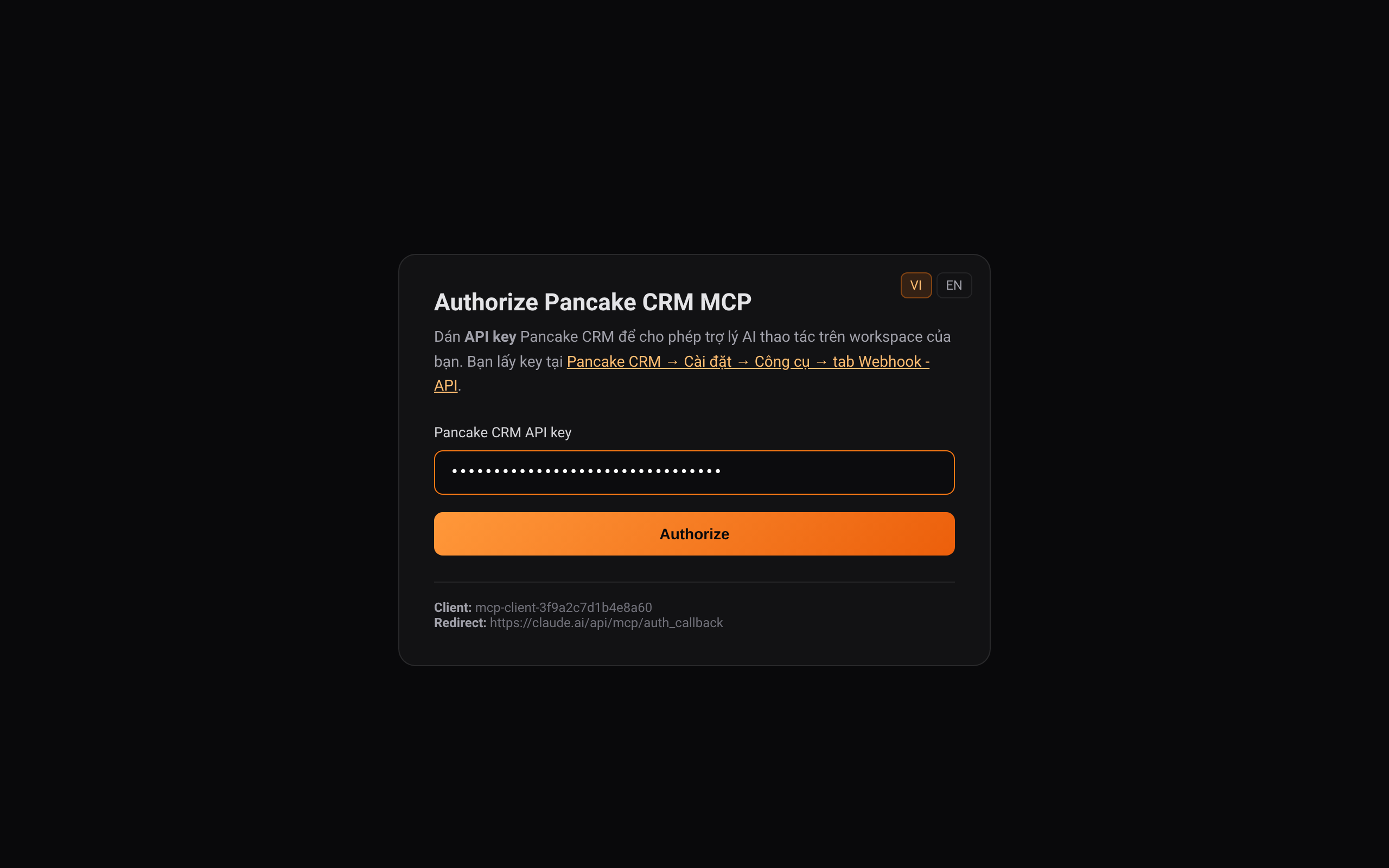
- Paste your API key into the Pancake CRM API key field → click Authorize
- Fully quit Claude Desktop (macOS: Cmd+Q) and reopen it for the connector to take effect
TIP
Using Claude Code, Cursor, or another AI app? Point the URL to https://mcp-crm.pancake.biz/mcp and send the API key via the X-Api-Key header. See the official CRM MCP docs for details.
Verify the connection
"List the 5 most recent Leads."
If AI returns real leads from your workspace, you're connected. If you get an authentication error, check the API key.
What CRM MCP can read
The menu before you order:
| Module | What you can ask |
|---|---|
| Lead | List leads, filter by source / status / assigned staff / creation date / tags |
| Contact | Contact info, interaction history, converted leads |
| Company | Company list, primary contacts, related orders |
| Deal | Pipeline by stage, deal value, owner, created/updated dates |
| Ticket | Support tickets by status, priority level, handling staff |
| Order | Order history, revenue, products, payment status |
| Product | Catalog, pricing, inventory |
| Customer File | Custom Audiences linked to Facebook/TikTok Ads |
| Sources & Tags | Lead sources, Pancake Tags — use these for precise filtering |
15 ready-to-use prompts
Group 1 — Pipeline & Deals
#1. Pipeline snapshot for today
📌 Start of day — where are all the deals without opening CRM?
"Using Pancake CRM MCP, show me how many deals are at each stage in the current pipeline. Present as a table: stage name — deal count — total estimated value."
✨ 30-second pipeline snapshot. Spot which stage has the most deals stuck.
#2. Deals closing in the next 7 days
📌 Weekly meeting — need a list of deals that need to close urgently.
"Get all deals with an expected close date within the next 7 days, sorted by nearest date. Include customer name, assigned staff, value, and current stage."
✨ A prioritized call list for sales to follow up on right now.
#3. Stale deals — no update in 2+ weeks
📌 Find deals that have been forgotten in the pipeline.
"Find deals that haven't been updated in 14 days and are still in an open stage. Group by assigned staff, and show which deal has gone the longest without activity."
✨ A list for managers to chase up or reassign.
#4. Win rate comparison — this month vs last month
📌 Monthly report for management.
"Compare the deal win rate for November vs October — by total and per staff member. Calculate win rate = Won / (Won + Lost)."
✨ A two-period comparison table — see at a glance who's trending up and who's down.
Group 2 — Leads & Conversion
#5. New leads this week by source
📌 Marketing wants to know which channels are performing.
"Get all leads created in the last 7 days. Group by Source, count each source, sort descending. Add a column for % of total."
✨ A lead source table — know which channels to put more budget into.
#6. Lead → Deal conversion rate by source
📌 The more important question: do those leads actually convert?
"For the past 30 days: by Source, show me the number of new leads, number converted to Deals, and the conversion rate. Sort by highest rate."
✨ Separate high-volume-low-quality channels from low-volume-high-conversion ones.
#7. Leads with no assigned staff
📌 Leads coming in with nobody picking them up — silent customer loss.
"List leads created in the last 7 days with no assigned staff. Sort by creation date, oldest first."
✨ Assign these before the leads go cold.
#8. Leads by status — funnel snapshot
📌 Where is the sales funnel getting stuck?
"Show me all leads grouped by current status — count each status. Add the % of total for each. Present as a table."
✨ Instantly see which stage has the most backlog.
Group 3 — Sales staff performance
#9. Lead leaderboard by staff this month
📌 End-of-month KPI review.
"This month (from Nov 1 to today), how many leads has each sales staff member created or received? Rank descending by count. Add a column: how many of those leads converted to Deals."
✨ A KPI table without waiting for the end-of-month report.
#10. Revenue by staff this month
📌 For commission calculations or bonus reviews.
"Total order value for November, broken down by responsible staff. Sort by highest revenue. Include order count and average order value per person."
✨ Individual revenue table — accurate basis for commission.
#11. Who has the most frozen deals
📌 Coaching target — who needs support?
"Which staff member currently has the most open deals with no update in the last 10 days? List the top 3, with deal count and which deal has been idle the longest."
✨ Identifies who needs a manager check-in now, not at month-end.
Group 4 — Tickets & Support
#12. Open tickets by priority
📌 Morning briefing for the CS team — what needs to be handled urgently?
"List all open Tickets (not closed), grouped by priority: Urgent → High → Medium → Low. Include customer name, creation date, and assigned staff."
✨ A prioritized work list for the whole day, no need to open CRM.
#13. Overdue tickets — no response past SLA
📌 Find tickets that are late to escalate.
"Which Tickets were created more than 24 hours ago and still have no first response from staff? List with customer name, creation time, and assigned staff."
✨ Escalate these immediately to avoid further complaints.
Group 5 — Orders & Revenue
#14. Revenue by product this month
📌 Which products are selling well?
"Total November revenue broken down by product — units sold, total value, average order value. Show the top 10 products by revenue."
✨ Know your flagship products to focus marketing on.
#15. Customers who haven't repurchased in 60 days
📌 Find customers to target for a reactivation campaign.
"List Contacts who have placed orders but whose most recent purchase was more than 60 days ago. Include total order count, total spend, and last purchase date. Export as CSV."
✨ A clean win-back target list — no manual export needed.
Prompt formula
Every good CRM MCP prompt follows this structure:
[1] Use Pancake CRM MCP + [2] which module + [3] time range / filter conditions + [4] what you need + [5] how to present it
Fill-in template:
"Using Pancake CRM MCP, get [Lead / Deal / Ticket / Order / Contact] [this month / last 7 days / Oct 1–31], [filtered by Facebook source / staff member John / status Won], and show me [count / total value / detailed list]. Present as a [table / CSV / bullet points]."
Concrete example:
"Using Pancake CRM MCP, get Leads from October, filtered by Facebook source, and show me the count and conversion rate. Present as a table."
6 techniques for working with CRM MCP
Technique 1 — Filter by multiple conditions at once
Don't ask one condition at a time — combine them in a single prompt:
"Leads from the Facebook source, created in October, assigned to staff member Minh, currently in the In Progress status."
AI handles complex AND conditions. Asking one by one is slower and loses context between questions.
Technique 2 — Compare two periods in one question
"Compare the number of new leads for October and November — by total, by source, and by staff member. Highlight anything that changed by more than 20% in either direction."
AI calculates the delta and flags notable changes — no need to compare tables manually in Excel.
Technique 3 — Pivot across multiple dimensions
CRM data has many axes: source × staff × status × time. Ask for a two-dimension pivot at once:
"November revenue broken down by source (rows) and by staff member (columns). Present as a pivot table."
✨ See instantly which staff member is strongest at which source — smarter lead assignment.
Technique 4 — Ask AI to calculate complex metrics
AI doesn't just fetch raw numbers — it can calculate:
"Calculate the conversion rate at each funnel stage: New Lead → In Progress → Converted to Deal → Won. Show the drop-off rate at each step and which step loses the most."
"Calculate Average Deal Size (ADS) per staff member and compare against the team average."
"Calculate the average number of days from lead creation to a successful close (Won). Which staff member has the shortest sales cycle?"
Technique 5 — Export for downstream use
Add a format instruction at the end of your prompt:
"Export as CSV so I can paste into Google Sheets"— get a pasteable text block immediately"Format as JSON for the dev team"— for integration"Write this as a short report paragraph I can send to my manager"— a summary instead of raw numbers
Technique 6 — Ask AI to suggest prompts
Not sure what to ask? Let AI propose:
"I'm a Sales Manager using Pancake CRM v2. With the CRM MCP connected, suggest the 8 most useful questions I should ask every week to track my sales team's performance. Write a ready-to-use prompt for each one."
"Using our CRM data, I want to find the leads most likely to convert so I can prioritize calls today. Suggest how to filter and which criteria to prioritize."
When a prompt doesn't return results
| Symptom | Fix |
|---|---|
| AI asks "which workspace?" | Add your workspace name, or ask AI to list workspaces you have access to |
| AI says "no data found" | Widen the time range, remove some filter conditions, double-check the exact source/status name |
| Numbers look wrong | "Show me the raw data you fetched so I can cross-check" |
| AI answers generically without calling any CRM tool | Add "Using Pancake CRM MCP" at the start of your prompt |
| 401 / unauthorized error | API key expired or revoked — create a new key in CRM and update the connector |
| Only getting one page of results | Add "get all records, no limit" or ask in smaller time windows |
FAQ
Q: How is this different from Pancake MCP (omnichannel chat)? A: They're completely separate. Pancake MCP (mcp.pancake.biz) reads conversation data, messages, and inbox stats — best for customer support teams. CRM MCP (mcp-crm.pancake.biz) reads Leads, Deals, Contacts, Tickets, and Orders in the sales pipeline — best for sales teams. You can connect both at the same time if needed.
Q: Can AI write data back to CRM? A: Yes — CRM MCP supports both reading and writing (create Leads, create Deals, update statuses, delete records...). If you're only using it for reporting, be careful and confirm before letting AI perform any write actions.
Q: Does everyone on the team need to connect separately? A: Yes — each person connects with their own API key. Don't share keys so you can audit who did what if needed.
Q: Does CRM v1 work? A: No — CRM MCP only supports CRM v2. Contact Pancake support to migrate if needed.
Wrap up
CRM is your sales team's biggest data store, but every time you want to extract an insight it costs 15–30 minutes of manual clicking.
CRM MCP changes that: ask in plain language, get a table of numbers in 30 seconds.
The real value isn't the 15 sample prompts — it's the prompt formula and 6 techniques above. Once you have the formula, you can ask anything — not just the examples here.
Get started:
- Connect (full setup guide) — about 5 minutes
- Test with prompt #1 (pipeline snapshot)
- Try technique #3 (pivot table) to see the real power