- Published on
Pancake now has an Email channel — connect via SMTP/IMAP and stop switching to Outlook
- Published on

- Name
- Định Phan - netFull
Pancake now has an Email channel — connect via SMTP/IMAP and stop switching to Outlook
TL;DR: Pancake just launched an Email channel in beta — customer emails show up as normal conversations, and staff can reply without leaving Pancake. This guide covers: Outlook/Microsoft 365 (3 clicks, done); Gmail, Google Workspace, and custom domain email on hosting (cPanel/Plesk) need an App Password and SMTP/IMAP settings.
The familiar situation: a customer messages on Messenger and staff see it instantly in Pancake, but a customer sends an email and someone has to remember to check Outlook separately — split inbox, missed messages.
Pancake solves this by adding an Email channel to its omnichannel system. The feature is in beta and supports: Outlook/Microsoft 365 via OAuth, Gmail and Google Workspace via IMAP/SMTP + App Password, and custom domain email on hosting.
What email looks like in Pancake
When a customer sends an email, Pancake displays it as a normal chat conversation — customer messages appear as chat bubbles, staff replies in the same thread. The difference from a regular chat is the thread header: subject line, sender name, and CC/BCC controls.
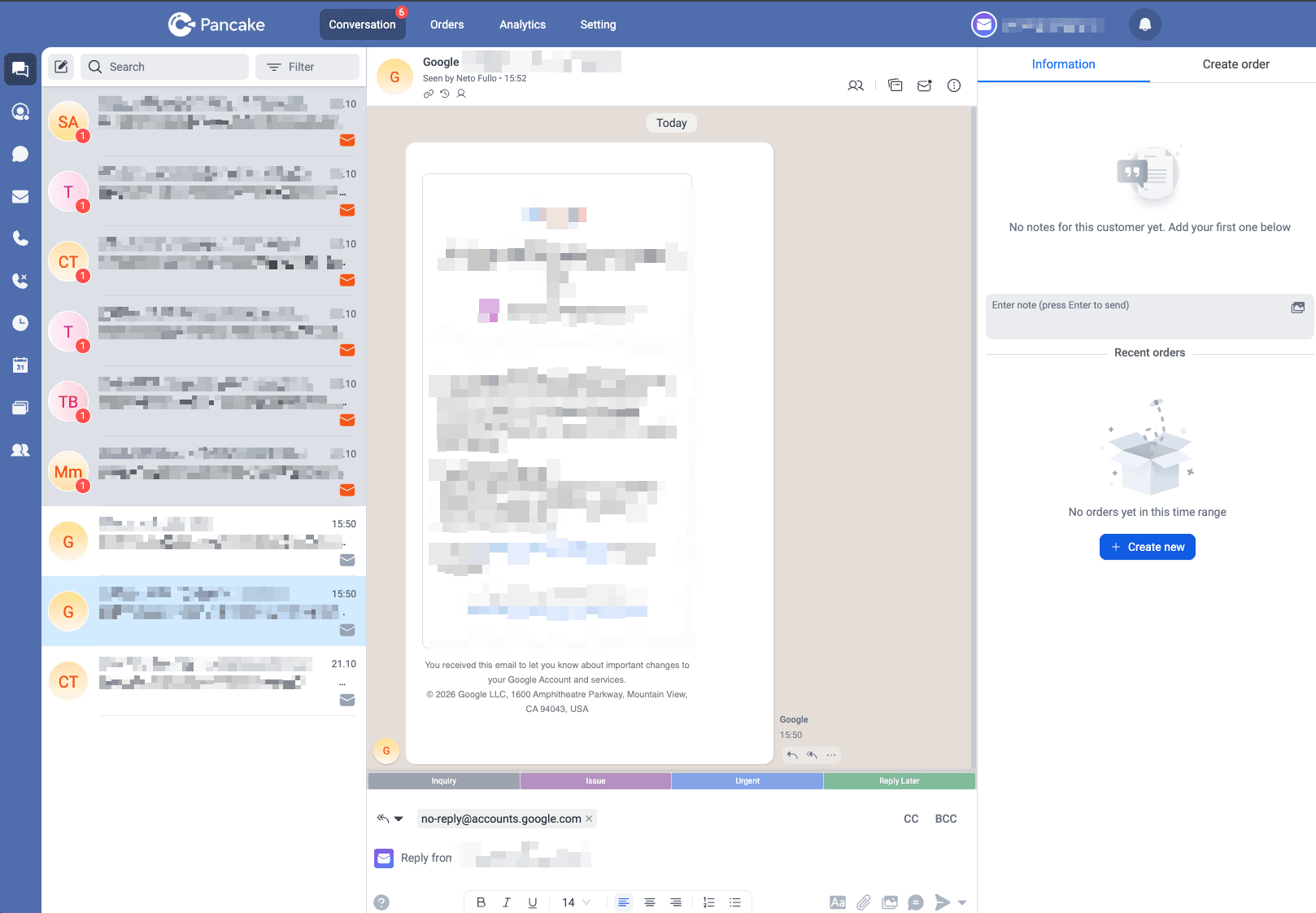
When staff click reply, a full-screen compose window opens with formatting tools: bold, italic, links, tables, images, signatures, and templates.
Emails in the same thread (reply chains) are automatically grouped into one conversation — no separate conversation created per message, which is a common pain point with other tools.
NOTE
Feature is currently in beta. Supported: Outlook/Microsoft 365 (OAuth), Gmail and Google Workspace (IMAP/SMTP + App Password), custom domain email on hosting.
Which method do you need — pick in 30 seconds
| Your email | Connection method | Time |
|---|---|---|
@outlook.com, @hotmail.com, @live.com | Connect Outlook (OAuth) | ~2 min |
Company email on Microsoft 365 — @company.com but signed in via Microsoft | Connect Outlook (OAuth) | ~2 min |
Custom domain on Google Workspace — @company.com but signed in via Google | IMAP/SMTP + App Password | ~10 min |
| Custom domain on hosting (cPanel, Plesk, DirectAdmin) | IMAP/SMTP | ~10 min |
Personal Gmail (@gmail.com) | IMAP/SMTP + App Password | ~10 min |
Go to settings
In Pancake, go to Dashboard → Connect, then find Email in the channel list on the left.
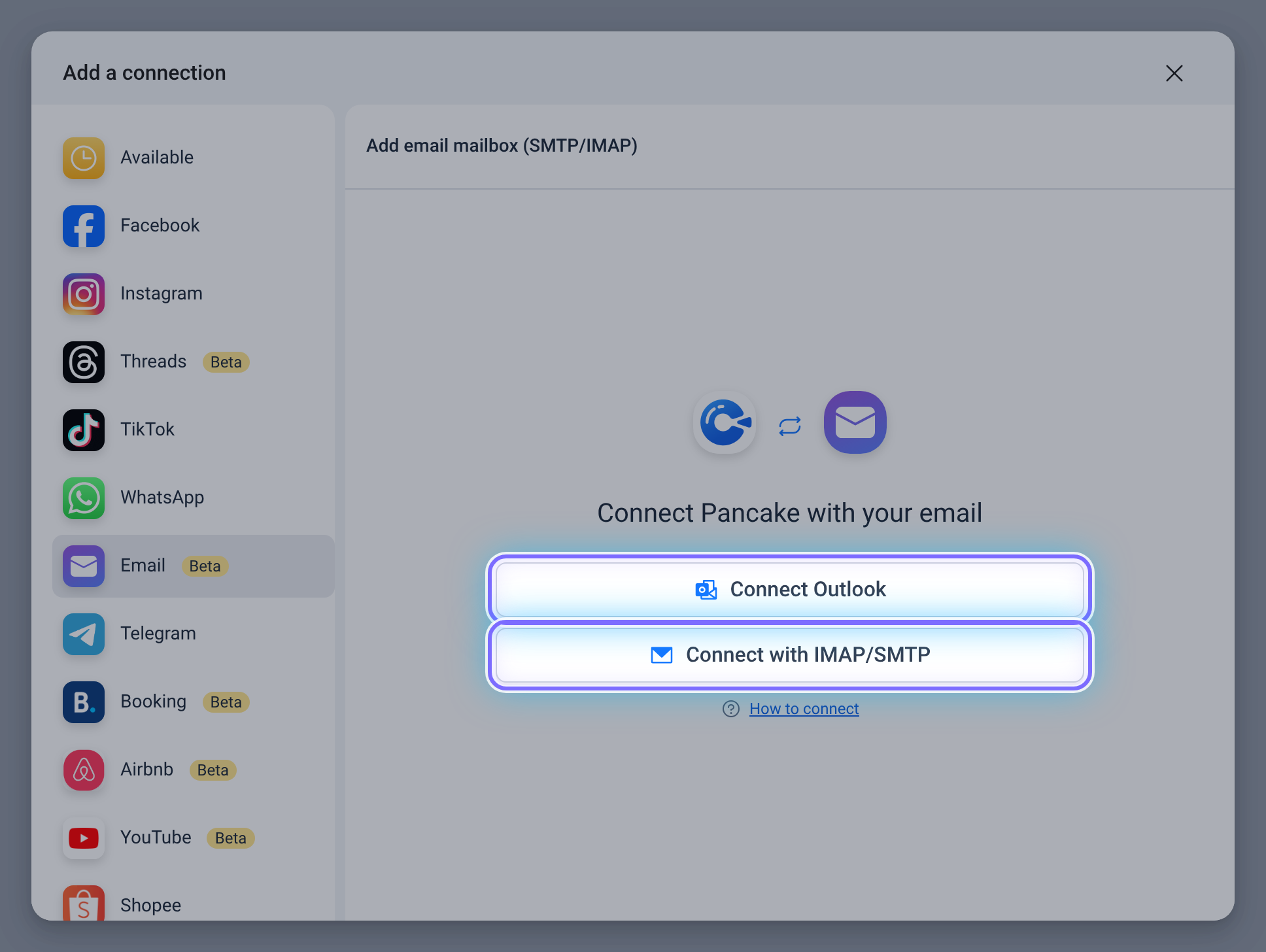
Method 1 — Outlook / Microsoft 365
If your email is Outlook or Microsoft 365, this is the fastest path:
- Click Connect Outlook
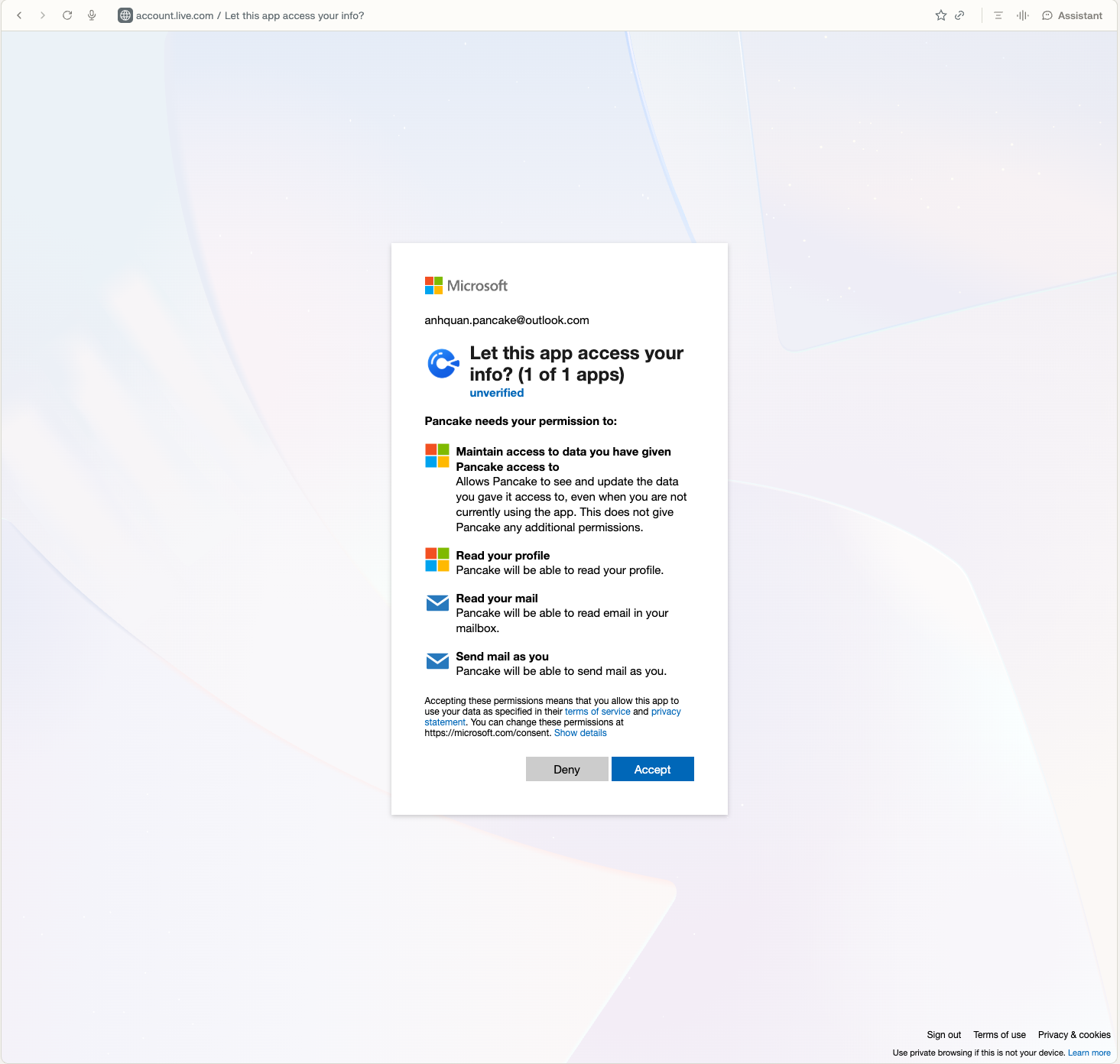
- A Microsoft sign-in window opens — select your account or enter email/password
- Approve Pancake's access to your mailbox — Pancake needs 3 permissions: read mail, send mail on your behalf, and read basic profile
- Done — no server or port to enter
WARNING
Don't enter an Outlook email into the IMAP/SMTP form — Microsoft has disabled Basic Authentication and it will error immediately. Use the Connect Outlook button instead.
Method 2 — Custom domain email via IMAP/SMTP
For custom domain email (Google Workspace, Gmail, or hosting), you need to fill in the connection settings manually.
Step 1 — Get your IMAP/SMTP settings
Use the table below. If your hosting provider isn't listed, search "[provider name] IMAP SMTP settings" — every provider has a help page.
| Provider | IMAP Host | IMAP Port | SMTP Host | SMTP Port |
|---|---|---|---|---|
| Personal Gmail | imap.gmail.com | 993 (SSL) | smtp.gmail.com | 465 (SSL) |
| Google Workspace | imap.gmail.com | 993 (SSL) | smtp.gmail.com | 465 (SSL) |
| cPanel hosting | mail.domain.com | 993 (SSL) | mail.domain.com | 587 (TLS) |
| Zoho Mail | imap.zoho.com | 993 (SSL) | smtp.zoho.com | 587 (TLS) |
| Fastmail | imap.fastmail.com | 993 (SSL) | smtp.fastmail.com | 587 (TLS) |
TIP
For cPanel hosting, replace domain.com with your actual domain — e.g. mail.shopxyz.com. Log in to cPanel → Email Accounts to confirm the exact settings.
Step 2 — Create an App Password (Gmail and Google Workspace)
Google doesn't allow signing in with your regular account password over IMAP — this applies to both @gmail.com and Google Workspace. You need to create a separate App Password:
- Go to myaccount.google.com → Security
- Enable 2-Step Verification if not already on (required before the next step)
- Find App passwords under How you sign in to Google
- Type any name in the App name field — e.g.
Pancake— then click Create - Google generates a 16-character password — copy it immediately, it's only shown once
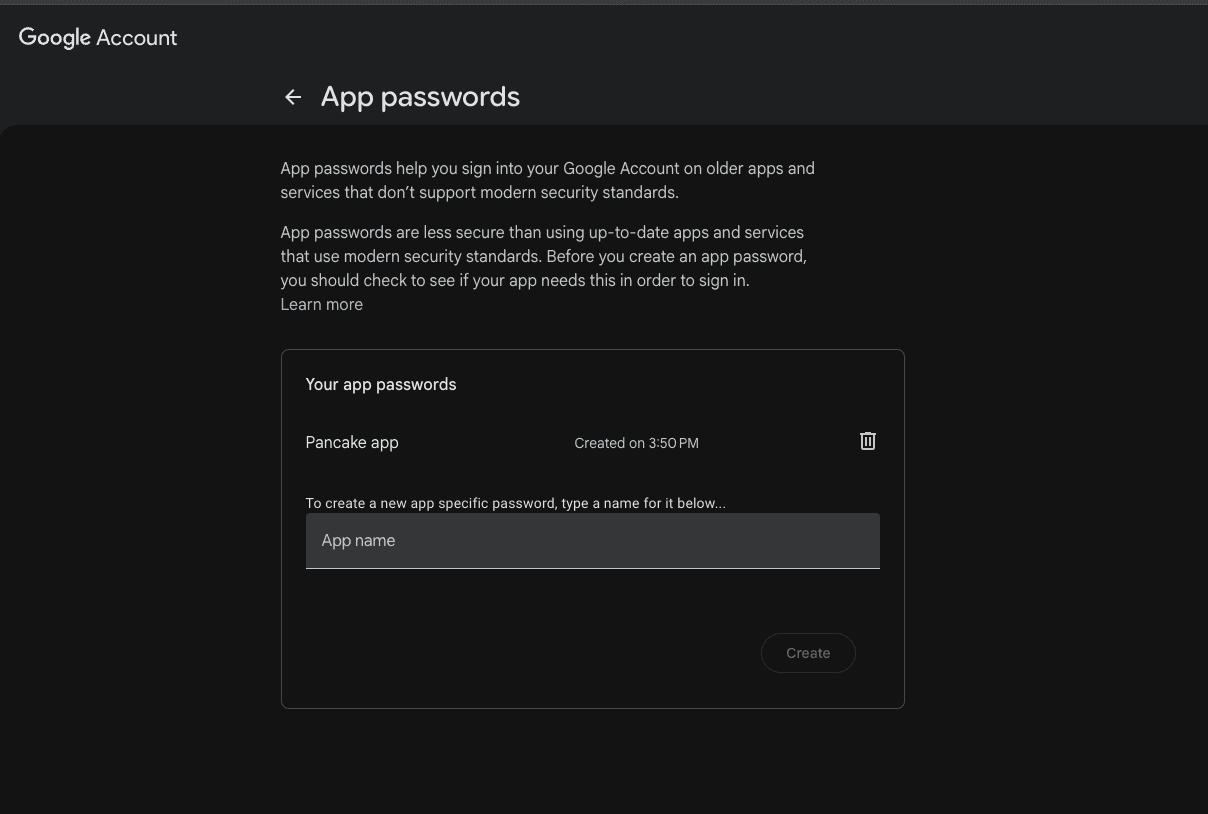
NOTE
This 16-character password replaces your real Google password when filling in Pancake. Your actual Google password will be rejected — this is the most common mistake.
WARNING
If you visit the App passwords page and see "The setting you are looking for is not available for your account":
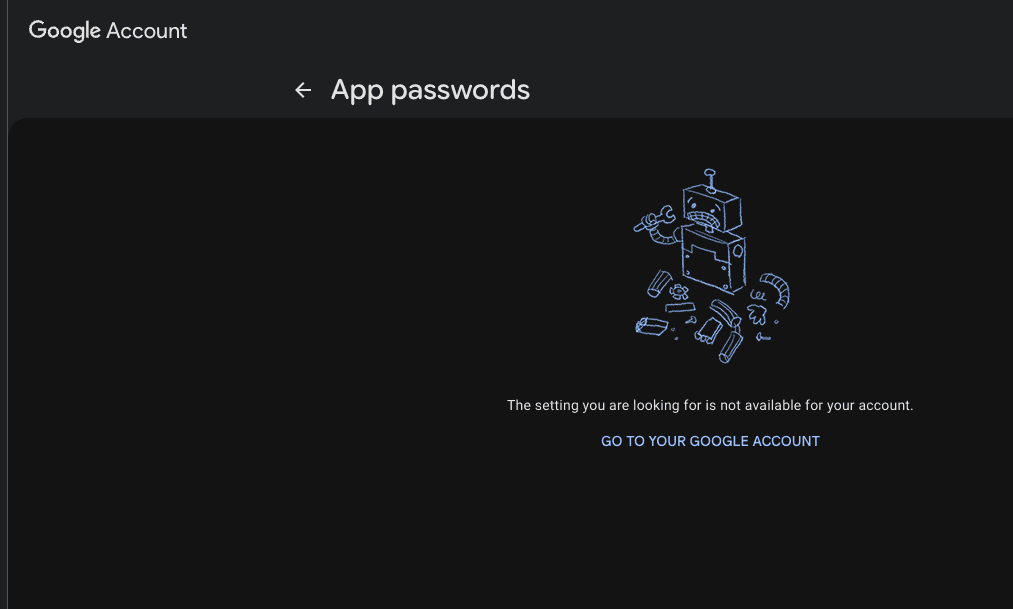
The cause is 2-Step Verification not being enabled. Go back to Security → 2-Step Verification, turn it on, then return to App passwords — the form will appear.
For cPanel hosting, use the regular email password — no App Password needed.
Step 3 — Fill in the form in Pancake
Go back to the Email connection screen in Pancake and fill in the IMAP/SMTP form:
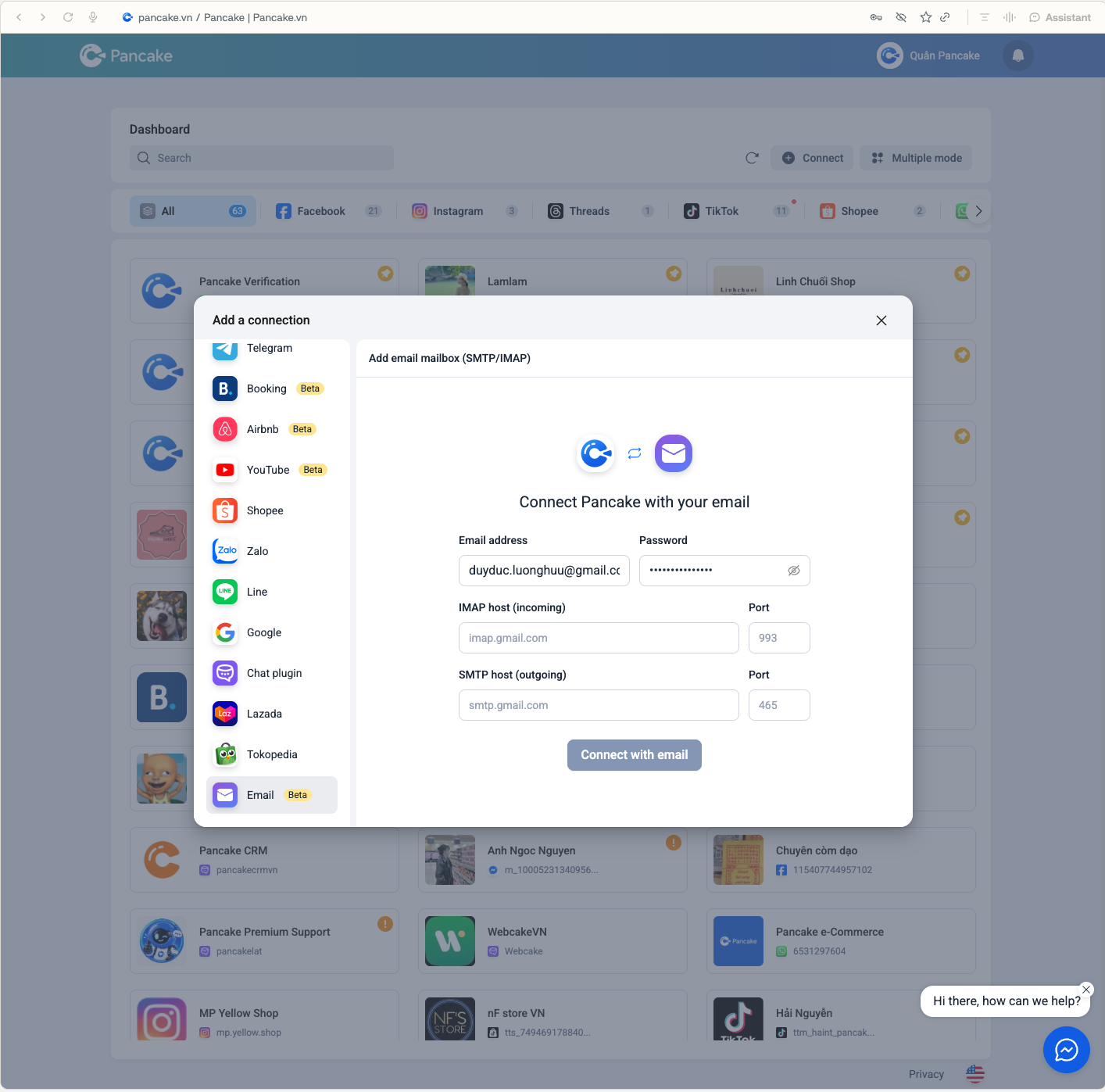
| Field | What to enter |
|---|---|
| Email address | Full email address — support@shopxyz.com |
| Password/App Password | App Password (Gmail/Google Workspace) or email password (hosting) |
| IMAP host | IMAP server (see table in Step 1) |
| IMAP Port | 993 |
| SMTP host | SMTP server (see table in Step 1) |
| SMTP Port | 465 (Gmail/Google Workspace) · 587 (hosting) |
TIP
For personal Gmail or Google Workspace, type exactly what the placeholders suggest: IMAP host imap.gmail.com port 993, SMTP host smtp.gmail.com port 465.
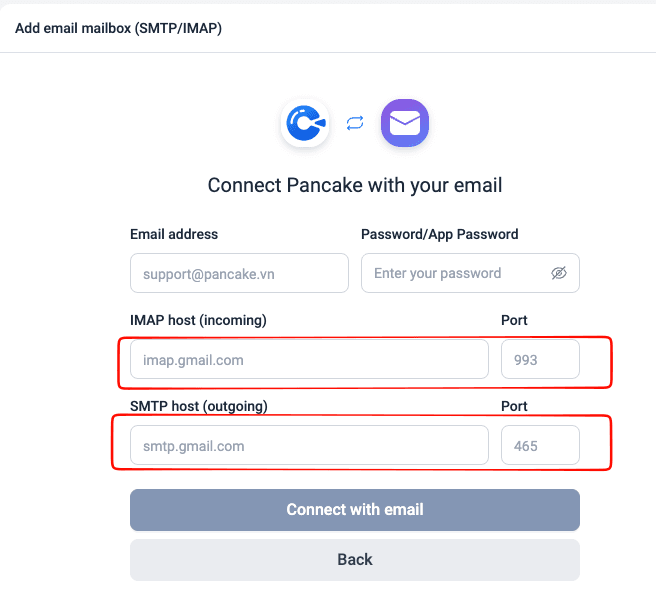
Click Connect with email — Pancake tests the connection and reports success or error immediately.
2 common errors
"Basic authentication is disabled"
You entered an Outlook/Microsoft 365 email into the IMAP/SMTP form. Go back and use the Connect Outlook button instead.
"Authentication failed" or "Invalid credentials" with Gmail or Google Workspace
You entered your real Google password in the Password field. Create an App Password following Step 2 above, then enter that 16-character password.
TIP
Still getting errors? Double-check the IMAP host and SMTP host — copy-paste from the settings table rather than typing manually to avoid typos.
After connecting
New incoming emails will appear in Pancake automatically. Emails already in your inbox are not imported retroactively — only messages received after the connection is set up will show.
Staff see emails in the conversation list like any other channel, and can apply tags, assign conversations, and filter by the Email channel.
NOTE
The feature is in beta — if you run into issues, contact Pancake support and specify which email type you're using (Gmail / Google Workspace / hosting / Outlook). The team is actively improving it.
Setup checklist
- Identify your email type: Outlook → use Connect Outlook; everything else → use IMAP/SMTP
- If using Gmail or Google Workspace: 2-Step Verification enabled and App Password created
- IMAP host / SMTP host / ports entered correctly from the provider's settings table
- Username is the full email address, not just the part before
@ - Click Connect → wait for Pancake to test and confirm success
- Send a test email to the connected address → confirm it appears in Pancake