- Published on
After-hours auto-reply with Botcake AI — set it up so the AI doesn't trample your team
- Published on

- Name
- Định Phan - netFull
After-hours auto-reply with Botcake AI — set it up so the AI doesn't trample your team
TL;DR: A customer messages at 10pm, your team left hours ago — silence costs you the sale, but an AI running unchecked costs you control the next morning. Three options here, simple to advanced: (A) Meta Away Message — no Botcake needed, 5 minutes; (B) Botcake AI on night duty — real conversations, real lead capture; (C) Botcake + POS/CRM + outbound alerts — the AI files the lead and pings your team. The part that matters most: turning on "Pause Botcake AI when staff replies" so the AI stops talking over your people.
The problem: customers don't wait for business hours
"Our page doesn't operate after 5pm and we're back at 8am. Is there a way to auto-reply to customers between 5pm and 8am?"
This question comes up almost weekly in support. Not because the feature is missing — but because there are several ways to do it, and each suits a different size of shop.
Two things go wrong when it's set up carelessly:
- AI runs 24/7 → next morning your agent replies, the AI chimes in too → the customer gets two overlapping messages and the thread turns into a mess
- Only a default message is enabled → it promises "we'll get back to you" but never asks for a name or phone number → in the morning nobody knows who to call first
Each option below is ordered by effort. Pick the one that fits your operation.
Choosing an option
| A — Away Message | B — Botcake AI on schedule | C — Botcake + POS/CRM | |
|---|---|---|---|
| Botcake required? | No | Yes | Yes |
| Setup time | 5 min | 30 min | 2–4 hours |
| Can it actually advise? | No | Yes | Yes (advanced) |
| Captures name/phone? | Not automatically | Yes | Yes |
| Creates orders / leads? | No | No | Yes (POS / CRM) |
| Best for | New shops, no Botcake yet | Most shops | Shops needing triage and handoff |
Option A — Meta Business Suite Away Message (no Botcake)
A free feature of Meta Business Suite, unrelated to Pancake. Use it when you only need to tell customers your hours and don't need the AI to advise anyone yet.
Setup
- Go to Meta Business Suite (business.facebook.com) → Inbox → Automated responses
- Pick Away message → Edit
- Turn on Status and choose Scheduled
- Enter your hours (e.g. 8:00–17:00) — the message fires outside that window
- Write the message — template below
After-hours message template:
Thanks for messaging [Shop name]! 🙏

We're closed right now — our hours are 8:00–17:00, Monday to Saturday.

Leave your phone number and we'll call you first thing when we're back!
TIP
Keep the "leave your phone number" line. Next morning your team filters unread conversations in Pancake and immediately sees who left a number worth calling first.
NOTE
Meta's Away Message asks nothing back and can't discuss products — it fires one message and goes quiet. If you want something that actually asks for a name, a number, and answers product questions, you need Option B.
Option B — Botcake AI on night duty
The most common setup. Botcake AI covers the hours your team doesn't.
Step 1 — Create an AI Agent
Log into Botcake, left sidebar under ADVANCE → Botcake AI.
IMPORTANT
Agents belong to a page. Pick the right page in the top-left before creating an Agent — there's no step later to assign a page to an Agent. If you run several pages, each one needs its own Agent, even with identical content.
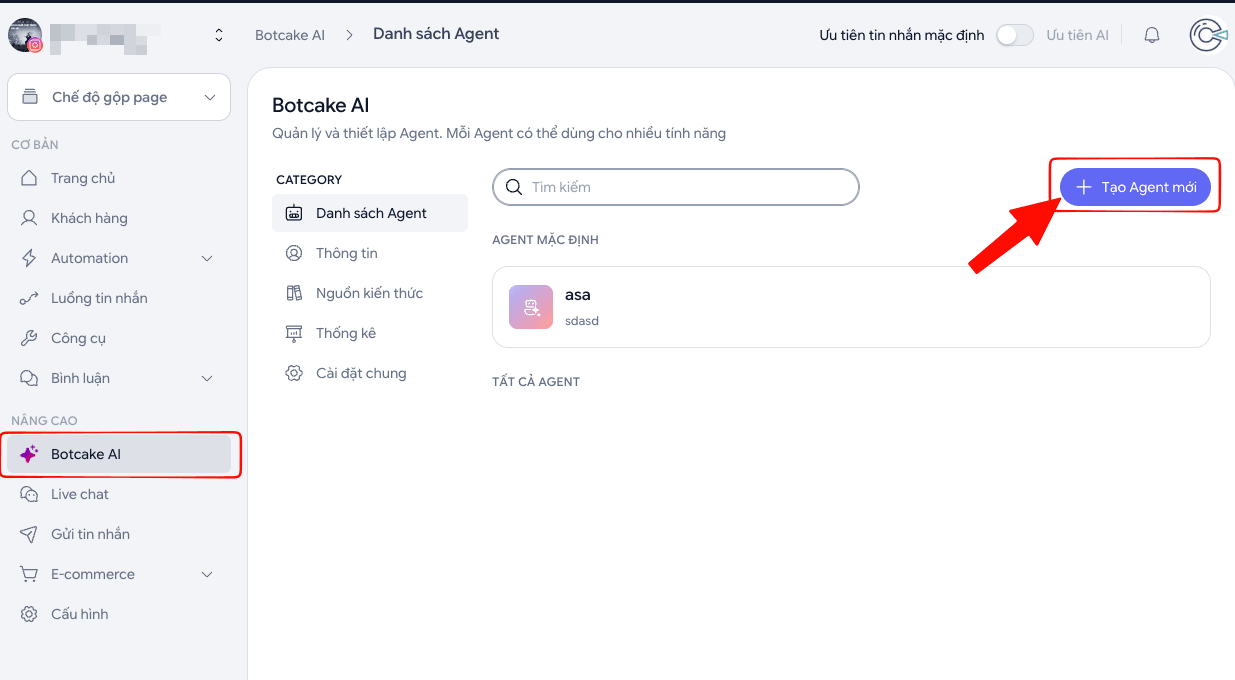
NOTE
The screenshot above shows the Vietnamese interface. Botcake ships both languages — Danh sách Agent is Agent list, Tạo Agent mới is Create new Agent.
The CATEGORY column has five entries; you'll use the first three:
| Entry | What it's for |
|---|---|
| Agent list | Create and manage Agents. One Agent can serve several features |
| Information | General shop details — shared by every Agent |
| Knowledge source | Where price lists, product descriptions and policies live |
| Statistics | How many conversations the AI handled and what it consumed |
| General settings | Configuration applied to every Agent on the page |
Hit + Create new Agent (top right) and give it a recognisable name — Night Shift AI, for instance.
NOTE
Your first Agent lands under DEFAULT AGENT — the one used when nothing else is specified. Later Agents sit under ALL AGENTS and need to be attached to a specific feature before they do anything.
Step 2 — Write the AI's instructions
Open the Agent you just made. The detail screen has four tabs:
| Tab | Contents |
|---|---|
| Instruction | The AI's instructions — the most important part, written in this step |
| Tools | Enable Pancake POS and CRM so the AI can create orders and leads |
| Knowledge | Pick which documents this Agent may use |
| AI response behavior | Fine-tune how the AI phrases replies |
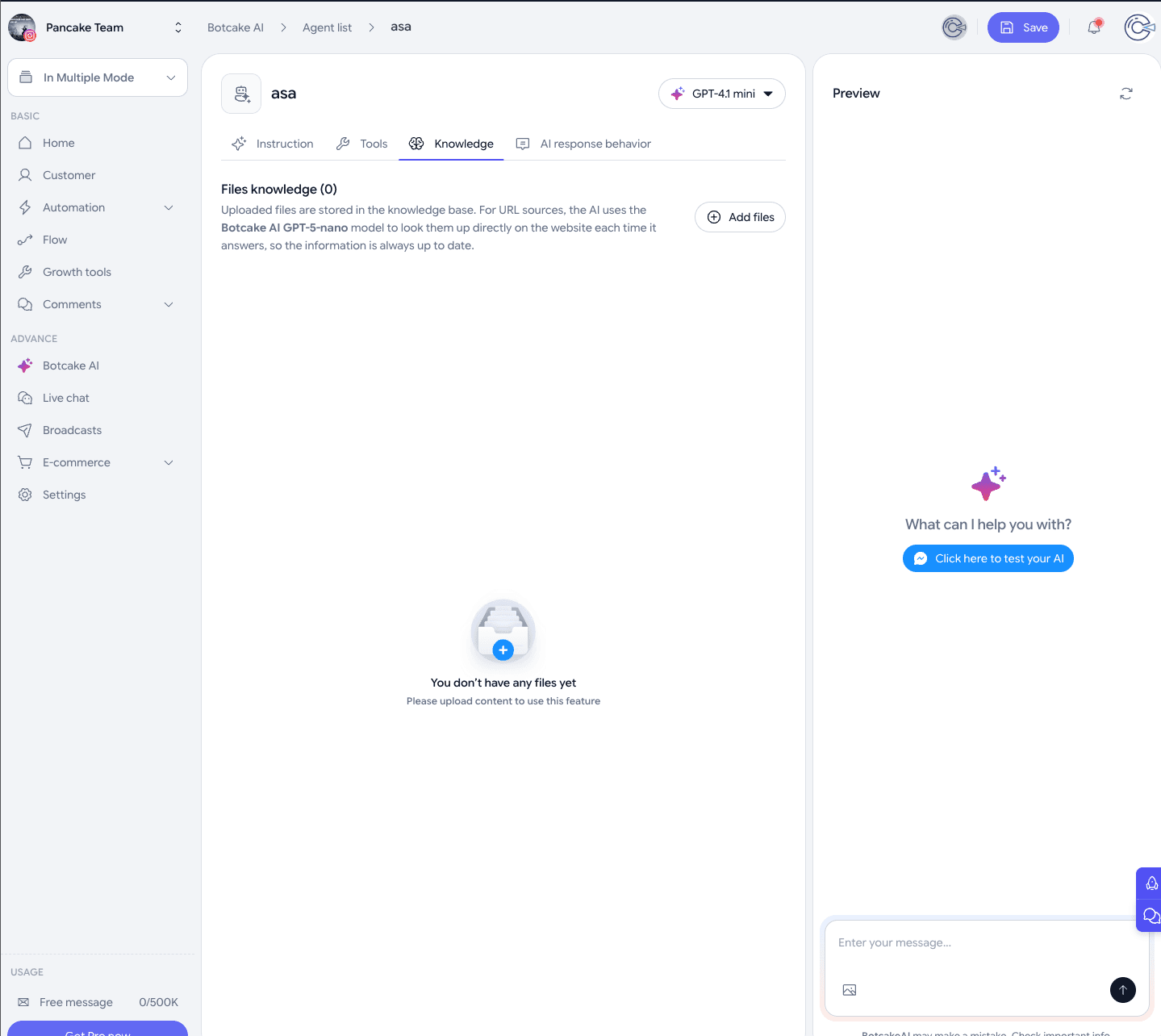
Top right holds the model dropdown (GPT-4.1 mini, …). A stronger model answers better but burns credit faster — for after-hours work a light model is usually plenty.
TIP
The right-hand panel has a Preview pane with Click here to test your AI — chat with it inside Botcake without touching the live page. Use it to iterate on the prompt before going live.
Under the Instruction tab, the Create your instructions box is where the prompt goes.
The three-part structure Botcake uses
Botcake's own sample prompt follows a fixed skeleton, and the AI obeys it far more reliably than free-form writing:
1: Context
   - You are [AI name], a customer care agent for [Shop name]
   - Write warmly and conversationally, use light emoji to sound natural
   - The shop is currently closed. Hours: 8:00–17:00, Monday to Saturday

2: Goal
   - Give enough advice that the customer doesn't have to wait until morning
   - Collect the following so a human can call back tomorrow:
     + Name
     + Phone number
     + Which product or service they're interested in

3. Process
   Note: follow every step below, in order, without exception
   - Step 1: Greet and state that we're closed
     + Greet the customer
     + Say the shop is outside working hours and a human will follow up at 8:00
     + (Do not ask "how can I help?" — proactively ask which product they're after)
   - Step 2: Advise using Knowledge
     + You must pull product details from Knowledge. Never invent them
     + If Knowledge has no answer, say "I'll have a colleague confirm that for you in the morning"
   - Step 3: Capture details
     + Ask for name and phone number so someone can call back
     + Read the details back to confirm
     + Thank them and restate when a human will reach out
Why this skeleton works:
| Part | What it buys you |
|---|---|
| Context | Locks tone and persona — no drifting between formal and casual mid-thread |
| Goal | Names exactly what to collect, so the AI knows when it's done |
| Process | Forces order. "Follow every step below, in order, without exception" is the line doing the heavy lifting |
TIP
Three techniques worth stealing from Botcake's sample prompt:
- Negative instructions in parentheses — "(Do not ask 'how can I help?' — proactively ask…)". Models love opening with an empty question; stating what not to do works better than describing what to do.
- Spell out what "collected" means — the original sample writes "Delivery address (must include house number, street, ward, district, city)". Leave it vague and the AI will accept "Hanoi" and call it a day.
- Make data lookups mandatory — "You must call the product system to retrieve…". Without the word must, the AI guesses instead of looking things up.
NOTE
The Improve AI button (top right) asks the AI to rewrite your prompt more clearly. Draft it roughly in the three-part skeleton, then hit the button — faster than polishing wording yourself. Re-read the result, though; it sometimes drops a constraint you added on purpose.
TIP
The Business information card above the prompt box holds shop name, address and hours centrally. Fill it in once and your prompts can just say "per the business information" instead of repeating it in every Agent.
Step 3 — Put product data in Knowledge, not the prompt
This is where shops commonly go wrong: dumping the entire price list into the prompt. Long prompts respond slower, cost more per message, and every price change means editing every Agent.
Knowledge works at two levels:
| Level | Path | Role |
|---|---|---|
| Shared library | Botcake AI → Knowledge source | The page's document store. Add, edit and delete here |
| Per Agent | Agent → Knowledge tab | Select which documents this Agent may use |
Documents go into the shared library first, then get selected per Agent. One price list can serve several Agents.
Worth uploading:
- Product / plan price lists
- Product descriptions and specs
- Returns, warranty and shipping policies
- Frequently asked questions
Open the Agent → Knowledge tab → Add files:
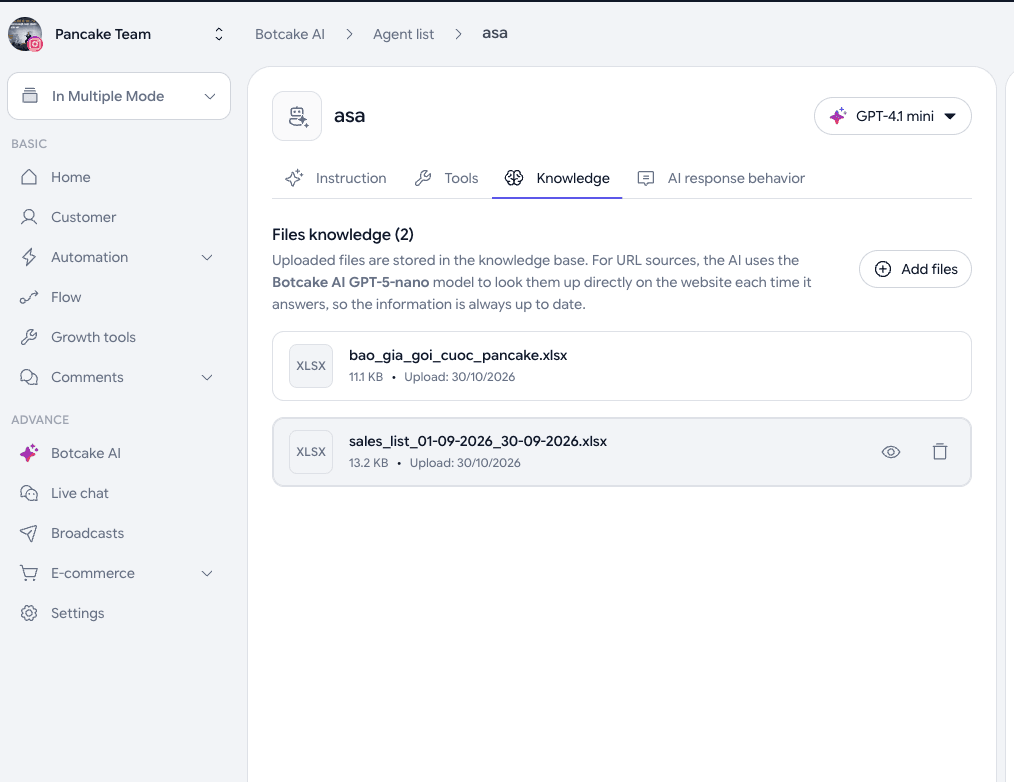
Each file shows its size and upload date. Hover for preview and delete icons.
The payoff: change a price in one library file and every Agent using it updates — no reopening Agents to edit prompts.
TIP
Files and URLs behave differently:
- Uploaded files (Excel, PDF…) are stored in the knowledge base — the AI reads the stored copy. Changing the content means uploading a new file
- URL sources are fetched live from the website on every answer (using the Botcake AI GPT-5-nano model), so the information is always current
If your pricing changes often, point a URL at your live pricing page instead of uploading a spreadsheet — one less thing to remember to update.
TIP
The Information entry (in the CATEGORY column) is for fixed shop details: name, address, hours, hotline. Fill it once and skip repeating it in every Agent's prompt.
Step 4 — Let the AI run outside working hours
This is the most counter-intuitive part of the whole setup, so read carefully.
Botcake has no separate schedule for the AI. It has one set of working hours for the whole page, and you then choose which features are allowed to keep running once those hours end.
Go to Settings → Operating hours:
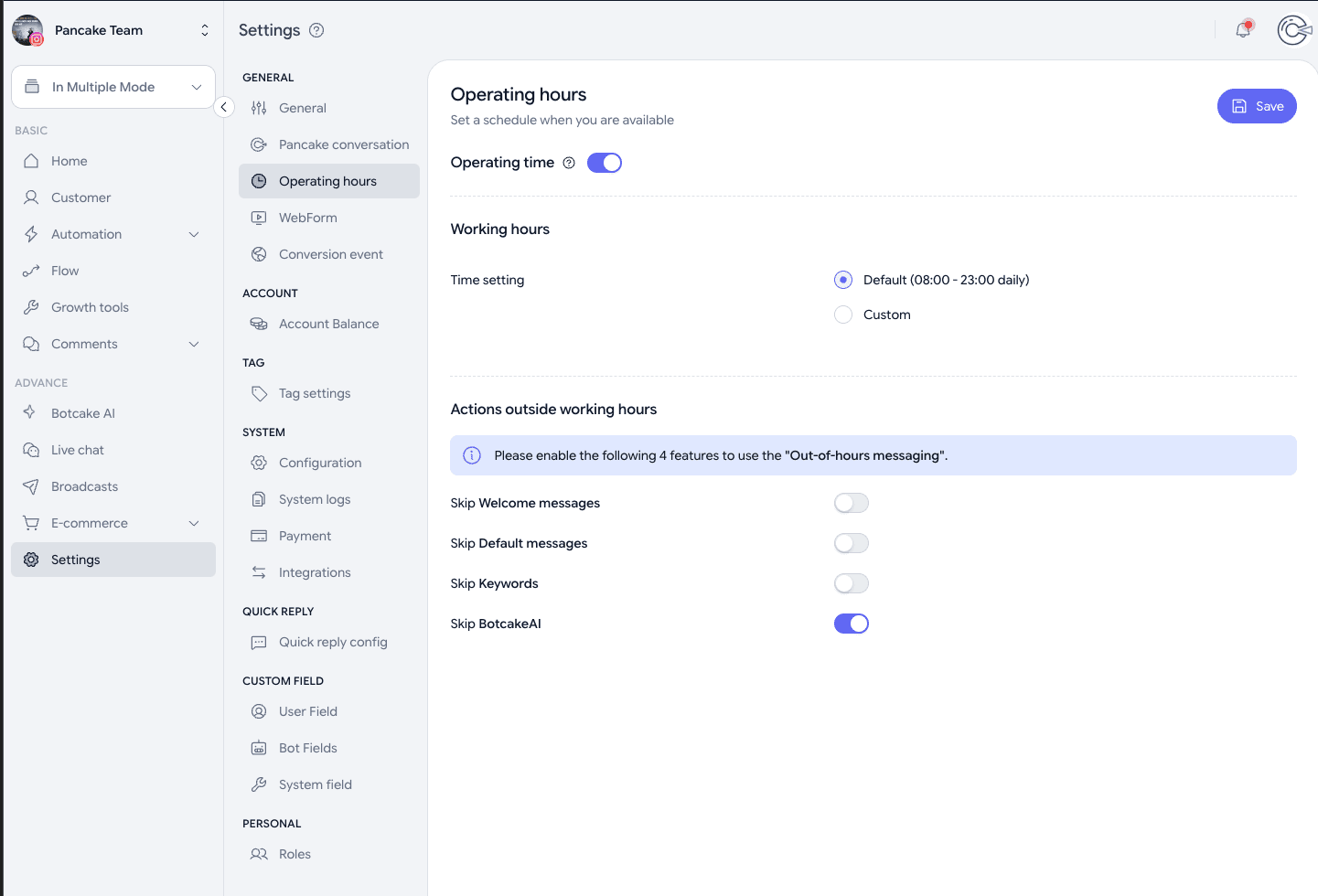
Two sections:
1. Working hours — declare when your team is ACTUALLY around
- Operating time: the window only applies when this is on
- Time setting: defaults to 08:00 – 23:00 daily. Choose Custom to match your real hours (e.g. 08:00 – 17:00)
WARNING
That 08:00–23:00 default fools a lot of shops into thinking they're done. If you close at 5pm but leave the default, the system treats 5pm–11pm as inside working hours — the AI stays quiet and customers get nothing. Click Custom.
2. Actions outside working hours — what keeps running after close
Four toggles. Whatever you switch on continues operating outside hours:
| Toggle | Switching it on means |
|---|---|
| Skip Welcome messages | Welcome messages still send after hours |
| Skip Default messages | Default messages still send after hours |
| Skip Keywords | Keyword flows still run after hours |
| Skip BotcakeAI | The AI still advises after hours ← the one you want |
IMPORTANT
"Skip" here means skip the working-hours restriction, not disable the feature. Turning on Skip BotcakeAI exempts the AI from the schedule, so it runs after hours. Plenty of people read it backwards, switch it off, and then wonder why the AI went silent.
Two ways to get the AI running after hours
| Approach | What you do | When to use it |
|---|---|---|
| A. Drop the schedule | Turn Operating time off | You want the AI and all automation running 24/7, no distinction |
| B. Exempt just the AI | Operating time on + Skip BotcakeAI on | Keep the schedule for everything else; only the AI works nights |
Approach B is the right one for after-hours coverage — the schedule still governs Welcome/Default/Keywords while the AI takes the night shift.
TIP
If you want customers to hear only from the AI after hours, leave Skip Welcome messages and Skip Default messages off. Turn on all three and someone messaging at 10pm can receive a welcome message, then a default message, then the AI's reply — three messages for one question.
NOTE
This schedule belongs to Botcake and is independent of Meta Business Suite's Away Message. Run both and customers get two messages from two systems. Pick one.
When the AI and a default message both qualify
The switch at the top right of the Botcake AI screen — Prioritize default message ↔ Prioritize AI — decides which one fires when both match:
| Switch position | Result |
|---|---|
| Prioritize default message | Default messages go first; the AI only runs when none match |
| Prioritize AI | The AI handles it; default messages are the fallback when the AI isn't active |
Choose Prioritize AI — you want a conversation that captures a phone number, not a canned line.
Two things that are easy to confuse: Skip BotcakeAI answers "may the AI run outside hours?", while the priority switch answers "when both the AI and a default message could fire, which wins?".
Step 5 — Pause the AI when staff reply (THE IMPORTANT ONE)
This is the most commonly skipped step, and it causes the most common failure: next morning an agent answers the customer, and the AI keeps talking anyway.
It's a page-level setting, not a per-Agent one.
Go to Settings → Pancake conversation and scroll to When staff replies on Pancake:
| Group | Toggle | Recommended |
|---|---|---|
| WITH BOTCAKE | Pause Bot | On, if you also run keyword/flow bots |
| WITH BOTCAKE AI | Pause Botcake AI | On |
Pause duration | Defaults to 24 hours |
IMPORTANT
Bot and Botcake AI are two separate toggles. If you run both a flow bot and the AI but only switch on one, the other still interrupts your staff.
How long should the pause be?
| Duration | Consequence |
|---|---|
| 24 hours (default) | An agent replies in the morning and owns that thread all day. Safest, but the AI won't help on that thread tonight either |
| 8–12 hours | Covers one shift, then the AI picks the thread back up overnight. Suits shops wanting continuous night coverage |
If your main goal is night coverage, pick 8–12 hours. If it's never letting the AI step on a human, keep 24 hours.
IMPORTANT
Without this toggle:
- Your agent messages the customer at 8:30am
- The AI is still active on that thread
- The AI sends one more message → the customer hears two voices → trust gone
Pausing the AI on a single conversation
Beyond the automatic rule above, you can pause by hand per conversation. In the Pancake chat view, click the Botcake icon in the conversation toolbar:
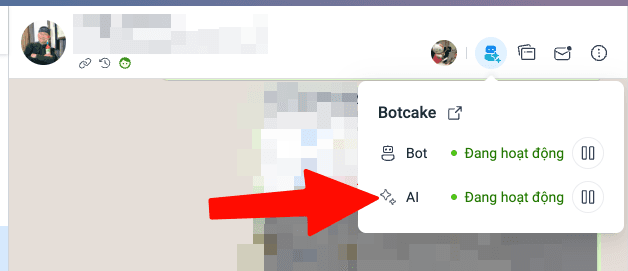
The popover shows Bot and AI separately, each with its own pause button. Use it when:
- A customer is upset and needs a human immediately
- The AI is answering wrongly and you want to cut it off mid-thread
- A VIP conversation you want kept entirely human
The arrow icon beside Botcake jumps straight into Botcake if you need to adjust something deeper.
Testing before you go live — three stages:
Stage 1 — Test the content inside Botcake. Open the Agent and use the Preview pane on the right, then Click here to test your AI. Run through the questions customers actually ask and watch whether the AI sticks to Knowledge and asks for a phone number. This stage can't verify the schedule or the pause rule.
Stage 2 — Test on the live page, visible only to you. Before opening it to customers, go to Settings → General → Customize Bot → Receive replies and select AI replies to admins only.
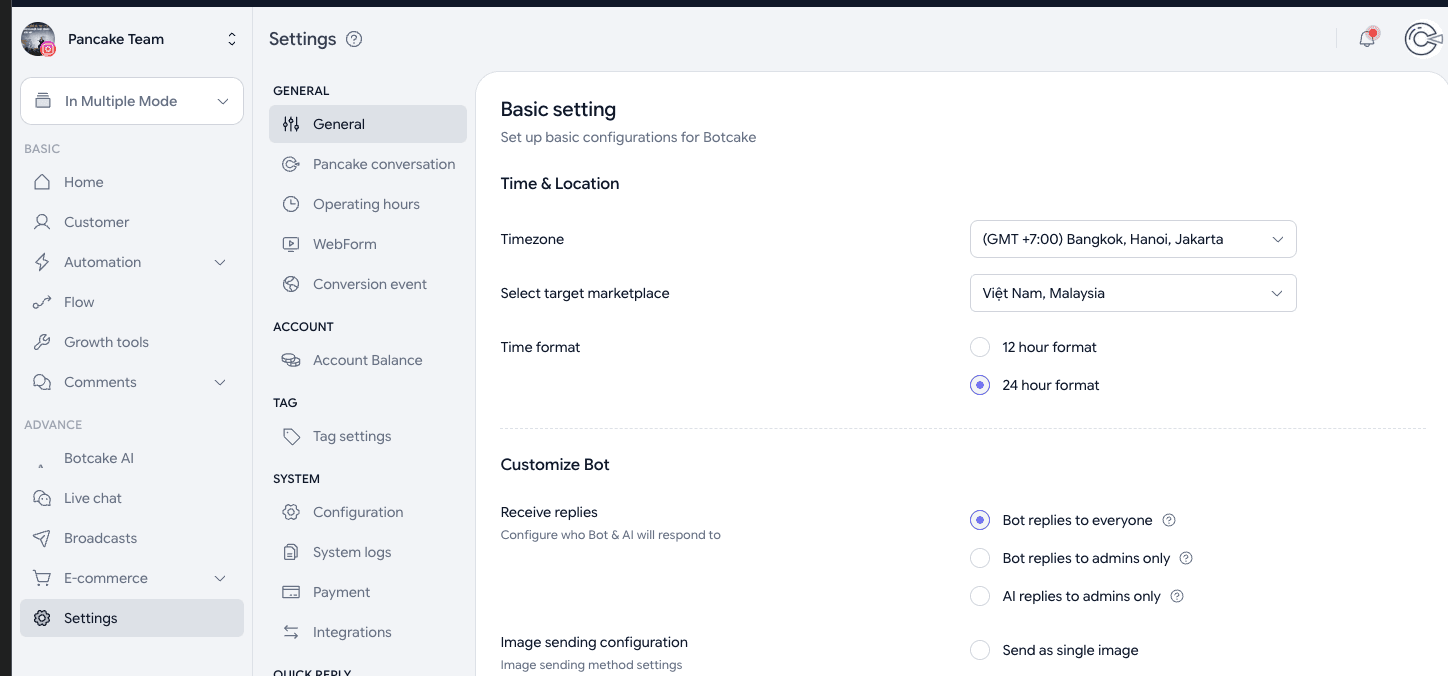
In this mode the AI only answers page admins — real customers messaging in get nothing from it. Message the page from an admin account after hours to verify the schedule and the content without exposing anyone to a half-finished prompt.
The three options here:
| Option | Who gets answered |
|---|---|
Bot replies to everyone | Everyone — live mode |
Bot replies to admins only | Admins only, applied to flow bots |
AI replies to admins only | Admins only, applied to the AI — use while testing |
Stage 3 — Open it up. Switch back to Bot replies to everyone. Message the page from a non-admin account after hours → confirm the AI replies → next morning have an agent reply in that thread → the AI must not add anything. Only this stage proves Skip BotcakeAI and Pause Botcake AI are actually working.
Option C — Botcake with POS/CRM plus outbound alerts
Botcake integrates directly with Pancake POS and CRM — no Make.com needed for that part. Make.com only enters the picture when you want to reach services outside the Pancake ecosystem: Slack, email, Google Sheets.
Enabling POS / CRM in the Agent
Open the Agent → Tools tab. The BUILT-IN section offers two integrations; enable whichever matches what you want the AI to do:
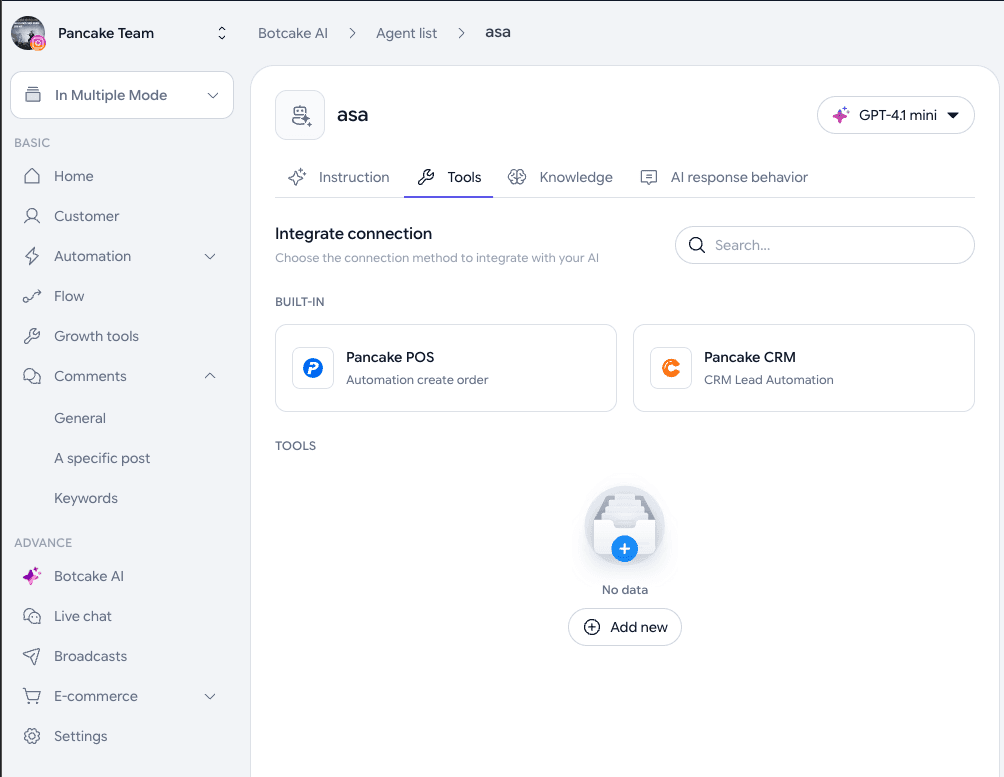
| Integration | What the AI can do | Fits |
|---|---|---|
| Pancake POS — Automation create order | Create orders automatically | Customer has decided; you just need the order placed |
| Pancake CRM — CRM Lead Automation | Create leads automatically | Customer is still exploring; a human should call back |
For after-hours work, Pancake CRM is usually the better fit. Someone messaging at 10pm is typically still researching rather than buying — filing a lead for a morning callback beats having the AI place an order overnight. Only shops with simple products and unambiguous pricing should enable POS as well.
Once enabled, add a constraint to the prompt in the Process section — otherwise the AI will file records while details are still missing:
- Step 4: Only create an order/lead once you have ALL of the following
   + Name
   + Phone number
   + Product of interest
   + Delivery address (if creating an order)
  Before creating anything, read the details back for confirmation.
  If the customer hasn't confirmed, do not create it.
TIP
The TOOLS section below (the Add new button) is for custom tools — calling your own API, checking stock in an external system, and so on. That needs a developer and isn't required for after-hours coverage.
The full flow with Make.com
Bring in Make.com when you need to notify staff through an outside channel (Slack, email, SMS):
Customer messages after hours
    → Botcake AI advises and captures details
    → [Direct] Creates an order in Pancake POS or a lead in CRM
    → Pancake webhook pushes the conversation event out
    → Make.com notifies the responsible agent via Slack / email
Use Pancake's webhook, not a Botcake one
The outbound part runs on Pancake's webhook — configured in Pancake, not inside Botcake. Botcake AI handles the conversation; Pancake handles emitting the event.
The short version (full details in the Pancake Webhook & API guide):
- Ask Pancake Support to enable webhooks — it can't be switched on from the interface, and only admin users can use it
- In Pancake's Webhook/API section, paste the Webhook URL Make.com gives you
- Your receiving endpoint must use HTTPS and return 200 within a few seconds — if processing takes longer, acknowledge with 200 immediately and do the heavy work in the background
The payload Pancake sends already carries what a notification needs:
| Field | Use it for |
|---|---|
page_id | Knowing which page the message came from, if you run several |
conversation_id | Building a link that opens the thread directly |
customer | Customer name and ID |
message | What the customer actually wrote |
TIP
No server yet? Grab a temporary URL from webhook.site, paste it into Pancake, send a test message to the page, and inspect the real payload before building anything in Make.com.
The notification scenario in Make.com
[Webhook] Receive event from Pancake
    → [Filter] Only messages outside working hours
    → [Slack / Email] Notify the responsible agent
        with customer name, message, and a link to the thread
NOTE
The customer's phone number is collected by the AI during the conversation — it isn't in the webhook payload. To get it into the notification, have the AI write it to CRM/POS via the direct integration above and let Make.com read it back — or accept a notification that just links to the thread.
NOTE
Option C needs someone comfortable with Make.com, or a developer on hand. If all you need is the AI creating orders and CRM records, the direct integrations are enough — skip Make.com entirely.
Common problems and fixes
The AI doesn't reply even though it's enabled
| Cause | Check |
|---|---|
| The conversation is assigned to a specific agent | Remove the assignment and the AI resumes |
| Still inside the pause window after a staff reply | Open the thread → click the Botcake icon → re-enable AI |
Skip BotcakeAI never switched on | Settings → Operating hours, enable Skip BotcakeAI |
| Working hours left at the 08:00–23:00 default | Click Custom and set your real closing time |
| Schedule off because of timezone | Settings → General → Timezone must be (GMT +7:00) Bangkok, Hanoi, Jakarta |
| Agent created on the wrong page | Agents belong to the selected page. Check the page in the top-left, then look under Botcake AI → Agent list |
Left on AI replies to admins only | Switch back to Bot replies to everyone under Settings → General |
The AI doesn't stop when staff reply
| Cause | Fix |
|---|---|
Pause Botcake AI not enabled | Enable it under Settings → Pancake conversation → When staff replies on Pancake |
Only Pause Bot enabled, Pause Botcake AI forgotten | They're separate toggles — enable both if you run both |
| Agent replied from mobile and Pancake hasn't registered it | Wait for sync (usually under 30 seconds) or refresh |
Pause duration set too short | Raise it to 8–24 hours to cover a full shift |
The AI gets product details wrong
| Cause | Fix |
|---|---|
| Knowledge source missing the product data | Add the price list and policies under Botcake AI → Knowledge source |
| AI inventing product names from ad copy | Add a rule: "Only discuss products present in Knowledge. Never name a product after an ad" |
| New products never added | Update Knowledge every time you add a product |
| Prompt doesn't force the AI to stay grounded | Add: "If Knowledge has no answer, say a colleague will confirm" |
TIP
After updating Knowledge, start a fresh test conversation rather than continuing the old one — the AI retains context within a thread and will keep answering from the stale version.
Setup checklist
Tick everything before going live:
- Picked the option that matches your scale (A / B / C)
- For Option A: the away message asks for a phone number
- For Option B or C:
- Information filled in (shop name, hours, hotline)
- Knowledge source holds the current price list and policies
- Agent → Knowledge tab has the right documents selected
- Tested in the Preview pane before going live
- Tested on the page with
AI replies to admins only, then switched back toBot replies to everyone - Prompt constrains the AI to "only answer from Knowledge"
- Working hours set via Custom to your real hours (not the 08:00–23:00 default)
- Skip BotcakeAI enabled under Actions outside working hours
-
Skip Welcome messages/Skip Default messagesleft off (avoid three messages for one question) - Settings → General → Timezone is GMT+7 (Bangkok, Hanoi, Jakarta)
- Top-of-page switch set to Prioritize AI (if the AI should replace default messages)
- Settings → Pancake conversation:
Pause Botcake AIon, duration chosen - If you also run flow bots:
Pause Botenabled too - Meta Away Message and Botcake AI not both running
- Tested: message after hours → the AI replies
- Tested: staff reply in the thread → the AI stays quiet
FAQ
Q: Which option doesn't require buying Botcake? A: Option A uses Meta Business Suite's Away Message — free, no Botcake, no extra Pancake plan. But it's one canned message with no conversation.
Q: Can the AI run during business hours too? A: It can, though usually it shouldn't. During the day your team needs control of the thread, and parallel AI replies mean two voices answering one customer. A clear schedule works better.
Q: The AI captured a phone number overnight — how does the team handle it in the morning? A: Filter conversations by unread in Pancake and prioritise threads with a number and clear intent. With Option C, staff get a notification before the shift even starts.
Q: Can I kill the AI in an emergency? A: Two levels. One conversation: click the Botcake icon in that thread and pause AI. Whole page: go to Settings → Operating hours and turn off Skip BotcakeAI, or disable the Agent entirely under Botcake AI → Agent list.
Q: Does Botcake AI cost extra? A: Botcake includes a free tier of 500,000 messages — check consumption in the bottom-left USAGE → Free message. Small and mid-sized shops running the AI overnight rarely hit that ceiling.
The model chosen in the Agent's top-right dropdown (GPT-4.1 mini, …) determines how fast credit burns. A light model handles after-hours work fine — greeting, quoting from a price list, capturing a number. Track usage under Botcake AI → Statistics.
Wrapping up
There's no single correct configuration — picking the right option matters more than building the most elaborate one:
- New shop, no Botcake yet: Option A, done in 5 minutes
- Moderate volume, want real conversations: Option B — and the step that matters most is pausing the AI when staff reply
- Need triage and post-conversation automation: Option C with POS/CRM and outbound alerts
Whichever you choose, the minimum bar is that customers know you're closed and know how to leave their details. Don't let someone message at midnight and find silence in the morning — not because you ignored them, but because they never knew the message landed.